

This guide covers exactly how to use MailerLite in 2026 — from creating your account to sending your first automated campaign — based on hands-on testing of every step below.
Quick Answer
60-second read
MailerLite is a beginner-friendly email marketing platform that lets you send campaigns, build automations, and create landing pages — starting completely free for up to 250 subscribers. After testing it hands-on across free and paid plans, most beginners can set up and send their first campaign within 30–60 minutes. The free plan is genuinely useful (though reduced from 1,000 to 500 subscribers in September 2025, then to 250 in June 2026), and the Comfort plan (formerly Growing Business) at approximately $12/month (~€10.38) is one of the best-value upgrades in email marketing. Not recommended if you need advanced CRM features or complex multi-channel automation.
Free plan available
This article was last updated May 2026 with verified current pricing and feature changes — including the September 2025 free plan reduction most guides still haven’t caught up on.
MailerLite is an email marketing platform founded in 2010 that serves over 1 million users globally. It competes directly with Mailchimp, GetResponse, and Brevo in the small business email marketing space, with plans ranging from $0 to $25/month (approximately €0–€21.63) for most users. If you’re trying to decide whether it’s even the right tool for you, check out our best email marketing software comparison first. EUR prices are approximate conversions — always verify at mailerlite.com/pricing.
🔬 How I Tested MailerLite
This guide is based on hands-on testing of MailerLite’s free and Comfort plans, supplemented by data from 3,340+ user reviews across G2 and Capterra, plus deliverability research from EmailToolTester. Pricing reviewed in March 2026 and verified again in May 2026.
3,340+
User reviews analysed
95.4%
Deliverability (ETT 2025)
4.6/5
G2 rating
May 2026
Pricing reviewed
📋 What You’ll Learn in This Guide
①
Account Setup
Sign up + approval
②
Domain Auth
SPF + DKIM
③
Subscribers
Groups + segments
④
First Campaign
Design + send
⑤
Automation
Welcome sequence
⑥
Forms + Pages
Grow your list
Ready to get started?
MailerLite’s free plan gives you 250 subscribers and 2,500 emails/month — no credit card needed.
Free forever · No credit card · 14-day Power trial included
What Is MailerLite and Who Should Actually Use It?
MailerLite is an email marketing platform launched in 2010, built for small businesses, bloggers, and solopreneurs who need professional email campaigns without a steep learning curve. It serves over 1 million users globally, is headquartered in Vilnius, Lithuania, and competes directly with Mailchimp and GetResponse in the budget email marketing space. Plans run from $0 to $25/month (approximately €0–€21.63) for most users — verify current pricing at the official site before committing.
What sets it apart isn’t a single killer feature — it’s the combination of a genuinely clean interface, solid deliverability, and a toolkit that covers email, landing pages, forms, and a basic website builder in one place. According to EmailToolTester’s 2025 ease-of-use testing, MailerLite has won their “Best for Beginners” award four consecutive years (2023–2026).
Best for: Bloggers, newsletter creators, small ecommerce businesses, and nonprofits who want a simple but capable platform at a fair price.
Skip it if: You need advanced CRM integration, multi-channel campaigns (SMS, push), or deep revenue attribution reporting. For those needs, ActiveCampaign or GetResponse are better fits.
The short answer: MailerLite is worth it for anyone building their first email list or running a newsletter under 10,000 subscribers. It’s genuinely the simplest platform to learn — most people can send their first campaign the same day they sign up. The free plan is real (not crippled), and the $12/month upgrade unlocks everything most small businesses actually need.
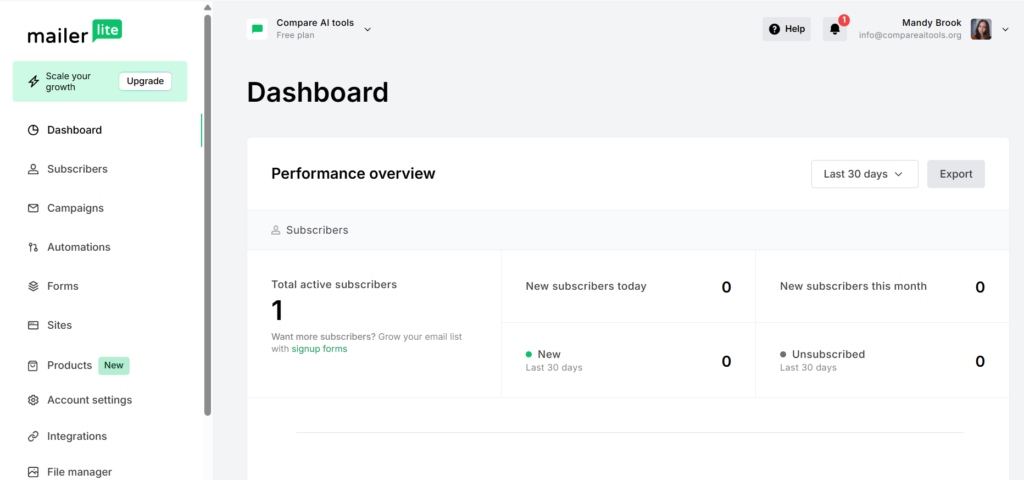
How Much Does MailerLite Cost in 2026 — and Is the Free Plan Worth It?
MailerLite offers four plans: Free ($0), Comfort ($12/month, formerly “Growing Business”), Power ($25/month, formerly “Advanced”), and Enterprise (custom). EUR prices below are approximate conversions — always verify at mailerlite.com/pricing before committing.
⚠️ Important Update: MailerLite reduced its Free plan from 1,000 to 500 subscribers on September 23, 2025, then cut it again to 250 subscribers (2,500 emails/month, down from 12,000) on June 16, 2026. Most guides online still show the old limit — that information is outdated. If you’re approaching 400 subscribers on a free account, you’ll get an in-app warning. You’ll need to upgrade or reduce your list to continue sending beyond 500.
Free
€0/month
No credit card required
- ✅ Up to 250 subscribers
- ✅ 2,500 emails/month
- ✅ Automation (1 trigger)
- ✅ 10 landing pages, 1 website
- ⚠️ No newsletter templates
- ⚠️ MailerLite branding required
- ⚠️ Community support only
Best for: Testing the platform
Comfort
~€10.38/month
~€7.69/mo billed annually ($9 USD)
- ✅ Unlimited emails
- ✅ 43+ newsletter templates
- ✅ No MailerLite branding
- ✅ Unlimited landing pages
- ✅ A/B testing + auto-resend
- ✅ 3 user seats
- ✅ 24/7 email support
- ✅ Unlimited digital products
Best for: Bloggers, solopreneurs, growing newsletters
Power
~€21.63/month
~€15.39/mo billed annually ($18 USD)
- ✅ Everything in Comfort
- ✅ Unlimited user seats
- ✅ Multi-trigger automation (3)
- ✅ AI writing assistant
- ✅ Custom HTML editor
- ✅ Facebook audience integration
- ✅ Smart sending (timezone)
- ✅ 24/7 live chat support
Best for: Teams, power users, complex automation
| Feature | Free | Comfort | Power |
|---|---|---|---|
| Price/month (approx. EUR) | €0 | ~€10.38 / $12 | ~€21.63 / $25 |
| Subscribers | Up to 250 | 500–1M+ | 500–1M+ |
| Monthly emails | 2,500 | Unlimited | Unlimited |
| Newsletter templates | ❌ | ✅ 43+ | ✅ 43+ |
| Automation triggers | 1 | Standard | ✅ Up to 3 |
| Landing pages | 10 | Unlimited | Unlimited |
| User seats | 1 | 3 | Unlimited |
| MailerLite branding | ⚠️ Required | ✅ Removed | ✅ Removed |
| Support | Community only | 24/7 email | 24/7 live chat + email |
| AI writing assistant | ❌ | ❌ | ✅ |
| 🏆 Best For | Testing & starting out | Bloggers & solopreneurs | Teams & power users |
EUR prices approximate. Always verify at mailerlite.com/pricing before committing.
The short answer: For most bloggers and small businesses, the Comfort plan (formerly Growing Business) at approximately €10.38/month is the realistic starting point. The free plan is useful for testing but the absence of templates makes it genuinely harder to create professional-looking emails. Compared to Mailchimp (which gives 500 emails/month free vs MailerLite’s 2,500), MailerLite’s free plan is still more generous on volume, though the gap has narrowed since MailerLite’s own June 2026 cut.
Step 1: How Do You Create and Get Approved for a MailerLite Account?
Getting approved is step zero — and it trips up more beginners than anything else. MailerLite has a stricter approval process than most email platforms, which is actually part of why their deliverability is so strong (they keep spammers out). Here’s exactly what to do:
- Go to mailerlite.com and click “Sign up free” — no credit card required.
- Sign up with Google, Microsoft, or your email address.
- Enter your company details — name, address, website URL, and phone number. These are required for anti-spam compliance, not optional.
- Answer the questionnaire about how you plan to use MailerLite and how you collected your subscribers. Be specific — vague answers slow approval.
- Describe your business: If you don’t have a website yet, link to your LinkedIn, Instagram, or any active social profile.
- Wait for approval — usually a few hours, sometimes up to 2 business days. You’ll get an email notification.
- Verify your email and log into your dashboard.
💡 Pro Tip: Speed Up Your Approval
The most common reason accounts get delayed: vague descriptions. Write 2–3 sentences explaining exactly who you email and how they subscribed. “I run a cooking newsletter and collect subscribers through my recipe website using a double opt-in form” gets approved faster than “I do email marketing.”
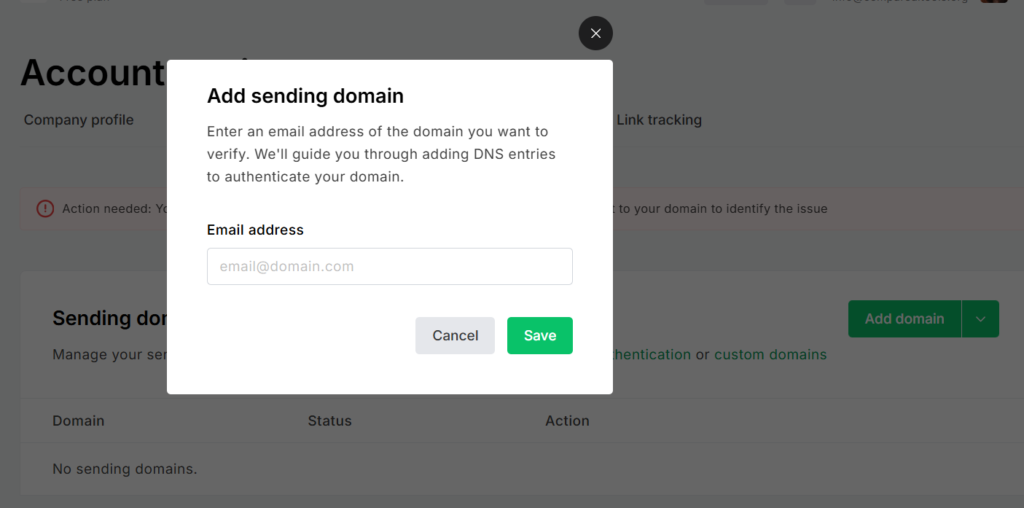
Step 2: Why You Should Authenticate Your Domain Before Sending Anything
Most guides skip this step entirely, which is exactly why many beginners land in spam. Domain authentication is the single most impactful thing you can do for deliverability — and it takes about 5 minutes.
- Go to Settings → Domains → Add domain in your MailerLite dashboard.
- Enter your sending domain (e.g., yourbusiness.com).
- MailerLite generates SPF and DKIM records — copy these exactly as shown.
- Add the records to your domain registrar (GoDaddy, IONOS, Cloudflare, Namecheap, etc.). MailerLite has one-click integration with GoDaddy, IONOS, and Cloudflare.
- Wait for propagation — usually 15–60 minutes, up to 48 hours maximum.
- Return to MailerLite and click Verify to confirm the records are live.
According to EmailToolTester’s deliverability research, properly authenticated domains see inbox rates 15–25% higher than unauthenticated sends. MailerLite’s 95.4% inbox placement assumes authentication is in place — skip it and your results will be meaningfully worse.
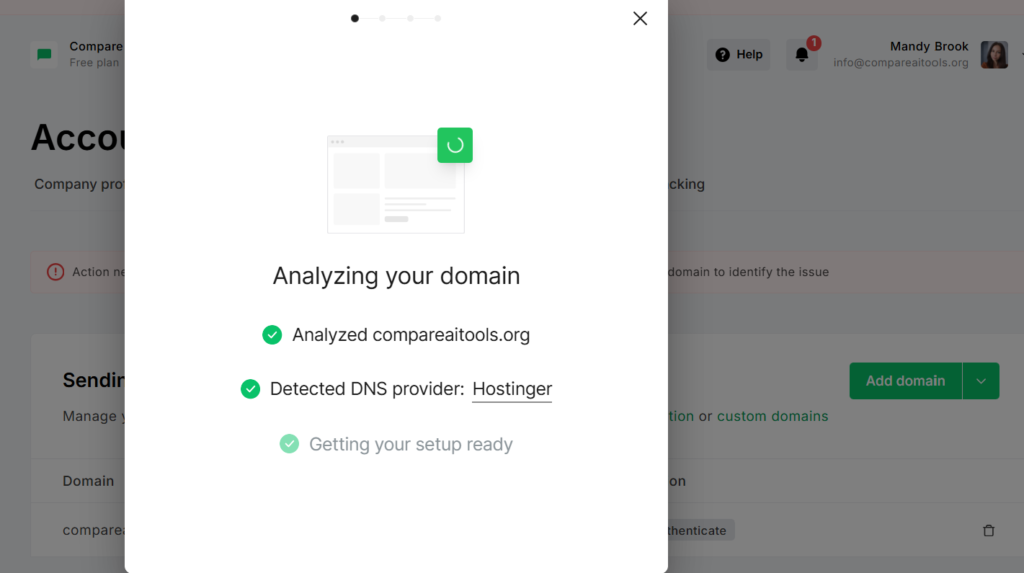
Step 3: How Do You Add Subscribers — and What’s the Difference Between Groups and Segments?
This confuses nearly every MailerLite beginner, and most guides gloss over it. Groups and segments are not the same thing, and using them wrong creates organisational headaches later.
Groups = static, manual lists. You add subscribers to a group manually, via import, or by connecting a specific signup form. Think of groups like folders: “Newsletter subscribers,” “Webinar attendees,” “Customers.” You control who’s in each group.
Segments = dynamic, automatic filters. Segments update in real-time based on subscriber behaviour or data. Examples: “Opened 3+ campaigns in last 90 days,” “Located in the Netherlands,” “Clicked the pricing link.” You set the rules once and the segment updates itself.
How to import subscribers:
- Go to Subscribers → Add subscribers.
- Choose your method: CSV upload, copy/paste, connect an integration (Shopify, WooCommerce, WordPress, Zapier), or add manually.
- Map your CSV columns to MailerLite fields (email, first name, last name, custom fields).
- Assign to a Group (create one now if needed — e.g., “Main List”).
- Confirm import and review the summary.
🧠 Groups vs Segments — Quick Reference
Use Groups when: you have distinct audiences (customers vs. prospects), different lead magnets, or events with separate attendee lists.
Use Segments when: you want to send based on engagement level, location, or purchase behaviour — without manually moving people between lists.
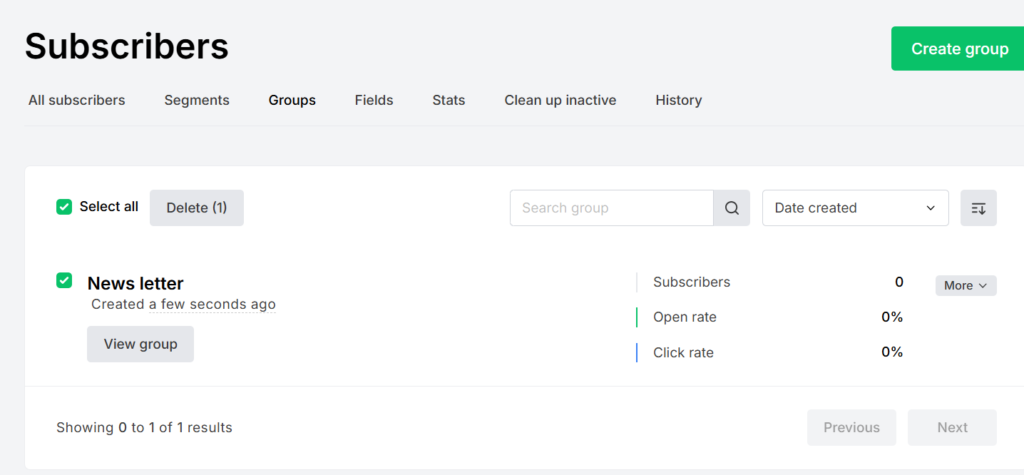
Step 4: How Do You Create and Send Your First Email Campaign in MailerLite?
MailerLite’s campaign creation flow is genuinely well-designed. You’re never more than 4 screens away from hitting Send. Here’s the exact sequence:
- Go to Campaigns → Create campaign.
- Choose campaign type — Regular (most common), A/B test (Comfort+), Auto-resend, or RSS. Start with Regular.
- Fill in campaign setup: Campaign name (internal only), email subject line, preview text, sender name, and reply-to email.
- Choose your template. Free plan users start from a blank canvas. Comfort users access 43+ pre-designed templates.
- Design your email. Add and rearrange content blocks: text, images, buttons, dividers, countdown timers, videos (auto-converted to GIF), surveys. Pull in stock photos from Unsplash directly inside the editor.
- Preview and send a test to yourself before going live. Switch between desktop and mobile preview with one click.
- Choose recipients — select your groups and/or segments.
- Send immediately or schedule for a specific time. Power plan users can use Smart Sending to auto-optimise for each subscriber’s timezone.
🎨 Drag-and-Drop Email Editor
Content blocks snap into place without any coding. Add text, images, buttons, countdown timers, YouTube videos (auto-converted to GIF for email clients), and AMP interactive widgets. The editor is responsive by default — mobile layout adjusts automatically.
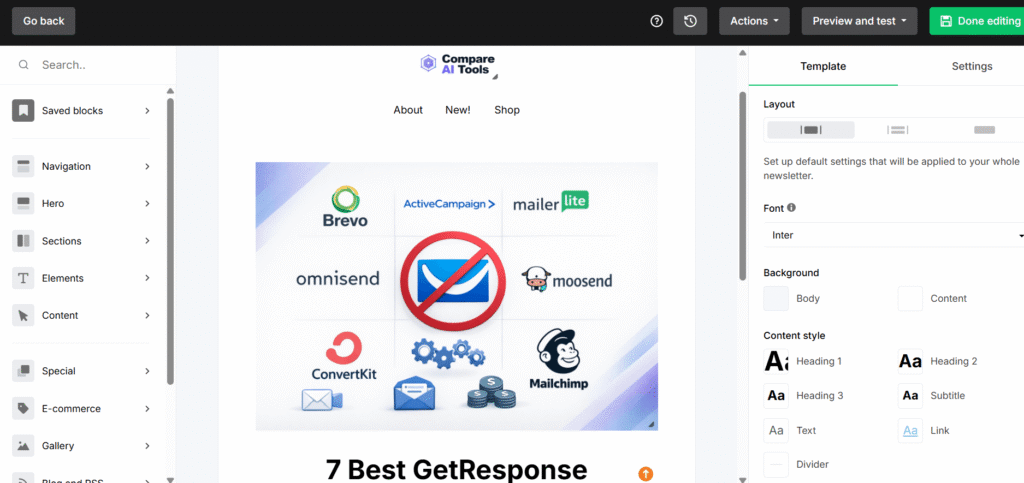
The short answer: From clicking “Create campaign” to clicking “Send,” most beginners take 15–30 minutes for their first campaign. The editor is genuinely intuitive — if you’ve used a basic page builder before, nothing here will surprise you. The only real friction point: free plan users don’t get templates, which means starting from scratch every time.
Step 5: How Do You Set Up Your First Email Automation in MailerLite?
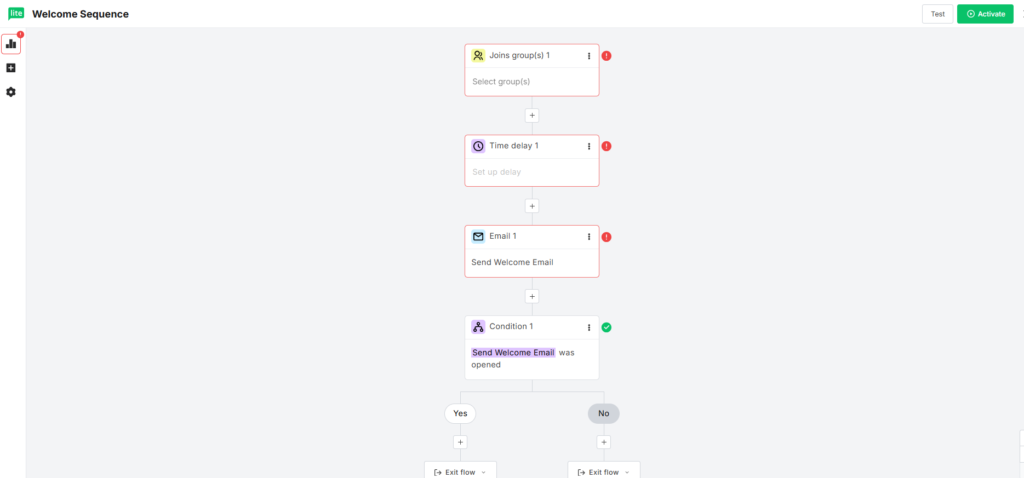
Automation is where MailerLite earns its reputation. The visual workflow builder makes sequences that feel intimidating on other platforms feel simple here — I set up a 4-email welcome sequence in about 20 minutes on my first try.
The most universally useful automation to start with: a welcome sequence triggered when someone subscribes.
- Go to Automations → Create workflow.
- Name your workflow (e.g., “Welcome Sequence — Main List”).
- Select trigger: “Subscriber joins a group” → choose your main subscriber group.
- Click the (+) button below the trigger to add your first step.
- Add “Send email” step → click “Design email” to open the editor and create your welcome email.
- Add a Delay step (optional) → e.g., “Wait 3 days” before the next email.
- Add additional emails following the delay — repeat as needed for a full sequence.
- Click Activate — the workflow runs automatically for every new subscriber from that point forward.
⚙️ 3 Welcome Automation Ideas for Beginners
- Single welcome email: Instant send with your lead magnet, best content, or a simple “thank you” — works on the free plan.
- 3-day drip sequence: Day 0: Welcome + freebie → Day 3: Your best blog post → Day 7: What to expect from the newsletter.
- Engagement check (Power plan): Send welcome → Wait 14 days → If they didn’t open: resend with different subject line → If they opened: move to next nurture sequence.
Free plan note: One trigger per workflow. To run multiple triggers simultaneously, you need the Power plan (~€21.63/month), which allows up to 3 triggers per workflow.
Step 6: How Do You Build Signup Forms and Landing Pages to Grow Your List?
Your email list only grows if people can actually find a way to subscribe. MailerLite gives you three tools for this: embedded forms, popup forms, and standalone landing pages.
Creating a signup form:
- Go to Forms → Create form.
- Choose type: Embedded (sits inside a page), Popup (appears on trigger), or Promoted (floating bar).
- Design the form using the editor — add/remove fields, style buttons and colours.
- Set which Group subscribers get added to when they submit.
- Enable double opt-in (strongly recommended — keeps your list clean and GDPR-compliant).
- Get the embed code or WordPress plugin snippet → paste into your website.
Creating a landing page: Go to Sites → Create landing page. Choose a template (Comfort/Power), customise text and imagery, connect a form, then publish. Free plan users get 10 landing pages; paid plans get unlimited.
WordPress integration: Install the official MailerLite plugin and connect it with your API key. Forms sync automatically — no copy-pasting embed codes needed.
If MailerLite’s landing page builder feels limited, check out our best landing page builders comparison for dedicated alternatives.
What Are MailerLite’s Biggest Problems — The Honest Downsides
No platform is perfect, and MailerLite has some real issues that other reviews tend to downplay.
- Account approval delays and bans: MailerLite’s review process can be slow and is sometimes opaque. There are reports of accounts being flagged or suspended without clear explanation, even for users who haven’t sent a single email — something I’ve personally encountered. This affects more users than MailerLite’s marketing would suggest.
- No phone support at any tier: Zero. Even Enterprise customers get email and chat only.
- Free plan reduction (September 2025): Cutting from 1,000 to 500 free subscribers felt like a bait-and-switch to users who’d built their early lists there.
- Limited reporting: No bot-click filtering (Apple MPP inflates open rates significantly), and no revenue attribution without third-party integration.
- Price increases: MailerLite raised prices in 2024, with some users reporting increases of 40–50% compared to their legacy plans.
⚠️ Account Suspension Warning
MailerLite has terminated accounts — sometimes without warning — from users who were not spamming. If you’re a cold-email sender or have any unsolicited contact history, do not use MailerLite. Their anti-spam policy is enforced strictly. If your account gets suspended, contact support immediately and be specific about your subscriber acquisition method.
MailerLite Pros and Cons — What Testing Actually Showed
✅ Pros
- Cleanest interface: Four consecutive “Ease of Use” awards (EmailToolTester 2023–2026)
- Strong deliverability: 95.4% inbox placement in latest independent tests
- Generous free plan: 2,500 emails/month vs. Mailchimp’s 500/month
- Visual automation builder: Genuinely intuitive — no coding required
- All-in-one toolkit: Email + landing pages + forms + website in one platform
- Excellent pricing: ~€10.38/month Comfort is among the cheapest in its tier
- GDPR-compliant: EU servers, ISO 27001 certified
❌ Cons
- Strict approval process: Can take days; occasionally flags legitimate accounts
- No phone support at any plan level
- Free plan reduced twice: 1,000→500 subscribers (Sept 2025), then 500→250 subscribers, 12,000→2,500 emails/mo (June 2026)
- No templates on free plan: Must design from scratch
- Basic reporting: No bot-click filtering, no revenue attribution
- Multi-trigger automation = Power only: ~€21.63/month required
- Smaller integrations: ~140 native vs. 300+ for Mailchimp
How Does MailerLite Compare to the Alternatives?
Monthly price comparison at 500 subscribers (paid plans)
Prices at 500 subscribers, monthly billing. EUR prices approximate — verify at official pricing pages.
MailerLite sits at the affordable end of the market — only Brevo comes close at the 500-subscriber tier. The main trade-off vs. Mailchimp: fewer integrations and less advanced reporting. The main trade-off vs. GetResponse: no webinars or advanced CRM built in. For a deeper dive, our best email marketing software guide covers 12 platforms head-to-head.
MailerLite Tips: How Do You Get Better Results from Your Campaigns?
- Authenticate your domain first (Step 2 above). Do this before you send anything. It’s the highest-ROI 5 minutes you’ll spend.
- Use double opt-in whenever possible. You’ll get fewer subscribers — they’ll be better ones, with higher open rates and fewer spam complaints.
- Clean your list every 90 days. Remove anyone who hasn’t opened in 180+ days.
- Personalise with first names. Open rates increase 20–30% on average. MailerLite supports dynamic content blocks.
- Send on a consistent schedule. Inconsistent sending damages deliverability and reader trust.
- Test subject lines with A/B tests (Comfort plan+). Run at least 4 tests before assuming you know what works.
- Don’t ignore the preview text. Write it intentionally — it’s like a second subject line.
- Never import purchased lists. This is the fastest path to account suspension.
Final Verdict: Is MailerLite Worth It in 2026?
After testing it hands-on across free and paid plans, my overall take is straightforward: MailerLite earns its reputation as the most beginner-friendly email platform available in 2026. The interface is genuinely the cleanest in the market, the deliverability is excellent, and the free plan — despite the September 2025 reduction to 500 subscribers — remains among the most generous available.
What I didn’t expect was how capable the automation builder is at the price. A visual workflow builder with delays, conditions, and A/B splits for approximately €10.38/month is legitimately impressive. The downsides are real: the approval process is stricter than competitors, there’s no phone support, and reporting is basic. If you need advanced automation logic or a full CRM, you’ll hit limits quickly.
My recommendation: Start on the free plan. Test everything — the editor, one automation, one landing page. If you’re still using it after 30 days (you probably will be), the Comfort upgrade is one of the easiest upsell decisions in software. For most newsletter creators and small business owners, that’s where you’ll stay for years.
For a full comparison before you commit, check out our GetResponse vs. Mailchimp breakdown, our email marketing automation guide, and our GetResponse alternatives article if you’re weighing all your options.
Ready to Start Building Your List?
MailerLite’s free plan is genuinely free — 250 subscribers, 2,500 emails/month, no credit card. The 14-day Power trial is included at signup so you can test everything before committing.
Free forever · Upgrade anytime · GDPR-compliant
More MailerLite & Brevo Guides
- MailerLite Review – our full hands-on MailerLite test
- MailerLite vs Mailchimp – full comparison
- MailerLite vs GetResponse – full comparison
- MailerLite vs Brevo – full comparison + winner
Plan-name update: MailerLite also renamed its paid tiers that same month: “Comfort” replaces “Growing Business” and “Power” replaces “Advanced,” with existing customers migrated to the new names at their next renewal starting August 13, 2026.
Frequently Asked Questions About MailerLite
Is MailerLite free?
Yes, MailerLite has a free plan that allows up to 250 subscribers and 2,500 emails per month with no credit card required. Note that the free plan was reduced from 1,000 to 500 subscribers on September 23, 2025, then cut again to 250 subscribers (2,500 emails/month, down from 12,000) on June 16, 2026 — many guides online still show an old limit. It includes basic automation, landing pages, and signup forms, but no newsletter templates and emails carry MailerLite branding. Paid plans start at $12/month (approximately €10.38/month). Always verify current pricing at mailerlite.com/pricing as EUR rates vary.
How long does MailerLite account approval take?
Typically a few hours to 1–2 business days. MailerLite has a stricter-than-average approval process to maintain deliverability quality. Speed it up by providing a working website URL, a real business address, and a clear 2–3 sentence description of how you collect subscribers. Accounts without a website should link to an active social profile and explain their business explicitly. Vague answers are the number one cause of delays.
What is the difference between groups and segments in MailerLite?
Groups are static, manually-managed lists — you add subscribers to a group via import, signup form, or manually. Segments are dynamic, filter-based lists that update automatically based on subscriber behaviour or data (e.g., “opened last 3 campaigns” or “located in Germany”). Use groups for list organisation and targeting specific audiences; use segments for behavioral targeting and personalisation. You can use both together — send to a group while excluding a segment.
How do I authenticate my domain in MailerLite?
Go to Settings → Domains → Add domain. MailerLite generates SPF and DKIM DNS records that you add to your domain registrar’s DNS settings. MailerLite offers one-click integration with GoDaddy, IONOS, and Cloudflare. After adding records, allow up to 48 hours for DNS propagation (usually much faster). Domain authentication significantly improves inbox placement — it’s the first thing you should do after account setup, before sending any campaign.
How do I create a welcome email automation in MailerLite?
Go to Automations → Create workflow → select trigger “Subscriber joins a group” → choose your subscriber group → click (+) → add “Send email” step → design your welcome email → Save and Activate. The automation then sends automatically to every new subscriber. You can add Delay steps and additional emails to build a multi-email welcome sequence. Free plan: 1 trigger per workflow. Power plan: up to 3 triggers per workflow.
What happens when I reach 500 subscribers on the free plan?
When you reach 500 active subscribers on MailerLite’s free plan, you cannot send campaigns until you upgrade or reduce your list. MailerLite sends an in-app warning at 400 subscribers to give you advance notice. Your forms and landing pages continue collecting new subscribers, but you can’t email anyone over the limit. To continue, upgrade to Comfort ($12/month, approximately €10.38/month) or remove inactive subscribers to stay under 500.
How do I avoid MailerLite emails going to spam?
The most impactful steps: (1) Authenticate your domain via SPF + DKIM (Settings → Domains), (2) Use double opt-in for all new subscribers, (3) Clean your list regularly — remove anyone inactive for 180+ days, (4) Maintain consistent sending frequency — sporadic sending after long silence damages reputation, (5) Avoid spam trigger words in subject lines. MailerLite averages 95.4% inbox placement in independent testing (EmailToolTester 2025) — but that assumes authentication is set up.
Is MailerLite GDPR-compliant for European users?
Yes. MailerLite stores data on EU servers and holds ISO 27001 certification. It includes GDPR-compliant opt-in forms, double opt-in support, unsubscribe management, and a Data Processing Agreement (DPA) available on request. It’s one of the stronger GDPR-compliant choices for European businesses at this price point.
How does MailerLite compare to Mailchimp in 2026?
MailerLite is cheaper and easier to use than Mailchimp at every subscriber tier. MailerLite now caps its free plan at 250 subscribers (Mailchimp’s is 250 too), but MailerLite still gives 2,500 emails/month free vs. Mailchimp’s 500/month — a meaningful difference for active senders. On paid plans, MailerLite Comfort at approximately €10.38/month is more affordable than Mailchimp Essentials. Mailchimp wins on integrations (300+ vs. 140+) and advanced analytics. For beginners and small businesses, MailerLite is the better choice. See our Mailchimp alternatives guide for more options.
Is MailerLite good for beginners in 2026?
Yes — it’s widely considered the most beginner-friendly email marketing platform available in 2026. MailerLite has won EmailToolTester’s “Ease of Use” badge four consecutive years (2023–2026). The drag-and-drop editor and visual automation builder allow most new users to set up and send their first campaign within 30–60 minutes. It holds 4.6/5 stars on G2 (1,086+ reviews) and 4.7/5 on Capterra (2,254+ reviews).
Can I use MailerLite to sell digital products?
Yes. MailerLite has a built-in digital product sales feature. Free plan users can sell up to 3 products. Comfort and Power plan users can sell unlimited digital products directly through MailerLite’s checkout, including ebooks, courses, templates, and subscriptions. It’s not a full ecommerce platform, but for creators selling a handful of digital downloads, it removes the need for a separate tool like Gumroad.
Does MailerLite offer a nonprofit discount?
Yes — nonprofits receive a 30% discount on all paid plans. To qualify, indicate your nonprofit status during the approval application and contact support with official documentation. The discount applies to all ongoing billing, not just the first payment.
📚 Related Reading
- 📊 Best Email Marketing Software 2026 — 12 platforms tested and ranked
- ⚔️ GetResponse vs. Mailchimp — which is better for small businesses?
- 🔄 Email Marketing Automation Guide — how to build sequences that convert
- 🔁 Best Mailchimp Alternatives — cheaper options with better free plans
- 🏗️ Best Landing Page Builders — when you need more than MailerLite’s built-in pages
- 📣 GetResponse Review — the main competitor with webinar features
- 📬 GetResponse vs. Brevo — comparing two European-friendly platforms
- 📧 MailerLite Review 2026 — full platform deep dive
This doesn’t influence our reviews. Pricing originally verified March 3, 2026 and reviewed May 2026. EUR prices are approximate conversions — always verify at official pricing pages before committing.