

This article was last updated October 2026 with verified current pricing and all Brevo plan changes. If you’ve been putting off setting up email marketing because it sounds complicated — I get it. I had the same hesitation. Brevo was one of the first tools I actually managed to get working without hitting a wall of confusion on day one, and I’ve since guided dozens of small business owners through the same setup.
In this guide, I’ll walk you through everything: creating your account, authenticating your domain (the step most beginners skip and then wonder why their emails hit spam), importing contacts, building your first campaign, and setting up automations. I’ll also flag the platform’s real limitations — including the 2,000-contact automation cap that trips up nearly every new Brevo user.
Quick Answer
60-second read
Brevo is an all-in-one email marketing platform used by 500,000+ businesses that starts completely free (300 emails/day, 100,000 contacts, no credit card needed). Setup takes around 20 minutes: create an account, authenticate your domain, import contacts, and send your first campaign. Paid plans start at $9/month (~€7.76) for Brevo Starter. The platform is ideal for small businesses and growing e-commerce stores — but if automation is your priority, be aware the free and Starter plans cap automation workflows at 2,000 contacts.
Free plan available
Ready to get started with Brevo?
Free forever plan — no credit card required. 100,000 contacts included.
🔬 How I Researched This Guide
This guide is based on hands-on testing of Brevo’s free and paid plans, analysis of 3,233+ Capterra reviews, 6,884 Trustpilot reviews, and EmailToolTester’s independent deliverability research (February 2025). All pricing was verified on the official Brevo pricing page on March 5, 2026. EUR prices use the XE.com rate of 1 USD = €0.8623 (verified March 5, 2026).
3,233+
Capterra reviews
89.1%
Inbox rate (Feb 2025)
7
Steps covered
Mar 2026
Pricing verified
📋 How to Use Brevo: 7 Steps at a Glance
1
Sign Up Free
brevo.com — no credit card needed
2
Authenticate Domain
Settings → Domains. SPF + DKIM + DMARC
3
Import Contacts
Contacts → Import → CSV upload
4
Build Signup Form
Contacts → Forms → Create
5
Create Campaign
Campaigns → Create → Design → Send
6
Set Up Automation
Automations → Create Workflow
7
Analyze Results
Campaigns → Reports → Optimize
What Is Brevo — and Who Actually Uses It?
Brevo is an all-in-one email marketing platform used by 500,000+ businesses worldwide. Originally founded as Sendinblue in 2012 and rebranded to Brevo in May 2023, it combines email campaigns, SMS, automation workflows, a built-in CRM, and live chat in a single dashboard. The platform is headquartered in Paris, France, and competes directly with Mailchimp, GetResponse, and MailerLite in the email marketing space. Plans range from €0/month (free forever) to ~€430.29/month for the Professional tier, based on emails sent per month rather than contact count — a pricing model that’s genuinely friendlier for businesses with large lists (verified pricing: March 2026, 1 USD = €0.8623 via XE.com).
What sets Brevo apart from most competitors is its email-volume pricing model. Mailchimp, ActiveCampaign, and most other tools charge you based on how many contacts you have. Brevo charges based on how many emails you send each month. If you have 50,000 contacts but only email them twice a month, you’re paying for 100,000 sends — not for 50,000 subscribers. For businesses with sizeable lists who don’t blast emails daily, this is a meaningful cost difference. According to McKinsey’s 2025 State of AI Report, 78% of organizations now use AI in at least one business function — and Brevo’s Aura AI (launched May 2025) positions the platform to serve that growing need natively.
The short answer: Brevo is a solid choice for small businesses, e-commerce stores, and solopreneurs who want email marketing, basic automation, and CRM without paying for multiple tools. It scores 8.2/10 based on aggregated user reviews (Capterra 4.6/5, Trustpilot 4.3/5). Not recommended for enterprise teams needing advanced CRM, agencies needing 200+ templates, or high-volume e-commerce stores already using Klaviyo’s native Shopify integrations.
What Does Brevo Cost in 2026? (USD + EUR Pricing)
Brevo offers four main plans in 2026. The free plan is €0/month and includes 300 emails per day and 100,000 contacts. The Starter plan costs ~€7.76/month ($9) for 5,000+ emails with no daily cap. Standard is ~€15.52/month ($18) and adds unlimited automation, A/B testing, and landing pages. Professional starts at ~€430.29/month ($499) for 150,000+ emails and WhatsApp marketing. All EUR prices based on 1 USD = €0.8623, verified March 5, 2026 via XE.com. Annual plans save 10%.
Free
€0/month
- ✅ 300 emails/day (~9,000/month)
- ✅ 100,000 contacts
- ✅ Drag-and-drop editor + 40+ templates
- ✅ Basic CRM included
- ✅ Automation (2,000 contacts max)
- ⚠️ Brevo branding on all emails
- ⚠️ 1 user only
- ❌ No A/B testing, no landing pages
Best for: Solo users learning email marketing
Starter
~€7.76/month
($9/mo · 1 USD = €0.8623, March 2026)
- ✅ 5,000–100,000 emails/month
- ✅ No daily sending limit
- ✅ Aura AI content generation
- ✅ 24/7 email support
- ⚠️ Logo removal: +~€7.76/mo extra
- ⚠️ Automation capped at 2K contacts
- ❌ No A/B testing, no landing pages
Best for: Small businesses sending regular newsletters
Standard
~€15.52/month
($18/mo · 1 USD = €0.8623, March 2026)
- ✅ Everything in Starter
- ✅ Unlimited marketing automation
- ✅ A/B testing
- ✅ Landing pages
- ✅ Advanced reporting & analytics
- ✅ Brevo branding removed
- ✅ Up to 3 users
- ✅ Priority email support
Best for: Growing businesses needing automation & A/B testing
All EUR prices based on 1 USD = €0.8623, verified March 5, 2026 via XE.com. Annual plans save 10%: Starter ~€84/year, Standard ~€167/year.
📋 October 2025 Plan Restructure
If you’re reading older Brevo guides that mention a “Business” plan — that tier was renamed to “Standard” in October 2025. Same features, same price. Landing pages also moved from Starter to Standard in this update, and a new “Professional” tier was introduced for high-volume senders (150,000+ emails/month). Any guide referencing the “Business” plan is out of date.
| Feature | Free | Starter (~€7.76/mo) | Standard (~€15.52/mo) |
|---|---|---|---|
| Monthly Emails | 300/day (~9K/mo) | 5K–100K/mo | 5K–1M/mo |
| Contacts | 100,000 | Varies by tier | Up to 2M |
| Automation | ⚠️ 2,000 contacts max | ⚠️ 2,000 contacts max | ✅ Unlimited |
| A/B Testing | ❌ | ❌ | ✅ |
| Landing Pages | ❌ | ❌ | ✅ |
| Brevo Branding | ⚠️ Always on | ⚠️ ~€7.76/mo to remove | ✅ Removed |
| Users | 1 | 1 | Up to 3 |
| Support | Knowledge base | 24/7 email | Priority email |
| 🏆 Best For | Testing / tiny lists | Growing small businesses | Most SMBs needing automation |
Quick verdict: Choose Standard (~€15.52/mo) if you plan to use automation with more than 2,000 contacts, want A/B testing, or need landing pages. Choose Starter (~€7.76/mo) if you’re just sending newsletters and have a small list. The free plan is genuinely useful for getting started and lists under 2,000 contacts.
The short answer: Brevo Starter at ~€7.76/month ($9) is only cost-effective if you don’t need logo removal and your automation list stays under 2,000 contacts. Add the logo removal add-on at ~€7.76/month and you’re already paying ~€15.52/month — the same as Standard, which gives you unlimited automation, A/B testing, and landing pages. For most growing businesses, Standard is the better long-term pick from day one.
Step 1: How Do You Create a Brevo Account?
Setting up a Brevo account takes around three minutes. Head to brevo.com and click “Sign up for free.” You’ll need your name, email address, and company name. No credit card required at any stage of the free plan.
After creating your account, Brevo sends a verification email. Once confirmed, you land on the main dashboard where an onboarding checklist guides you through the next setup steps — which is actually one of the things I appreciate about the platform. Many tools drop you into a blank interface and leave you guessing. Brevo’s checklist keeps you oriented.
During signup, Brevo asks for your company industry and monthly sending volume. Answer honestly — it helps them set your account type appropriately. If you’re an agency sending on behalf of clients, note that carefully, as Brevo has strict policies around cold email (more on that in the controversy section below).
Step 2: Why Does Domain Authentication Matter — and How Do You Do It?
⚠️ Don’t Skip This Step
This is the single most important setup step for email deliverability. Emails sent without domain authentication are far more likely to land in spam — regardless of your plan or content quality. Most beginners skip this and spend weeks wondering why their open rates are terrible. Takes under 5 minutes.
Domain authentication in Brevo takes approximately 5 minutes using the automatic setup. Navigate to Settings → Senders, Domains & Dedicated IPs → Domains. Add your domain and choose Automatic Authentication. Brevo then sets up SPF, DKIM, and DMARC records through your registrar automatically.
Here’s how to authenticate your domain in Brevo, step by step:
- Go to Settings: Click the gear icon in the left navigation → Senders, Domains & Dedicated IPs → Domains tab
- Add your domain: Click “Add a domain,” enter your professional domain (e.g., yourbusiness.com), and click Add
- Choose authentication method: Select Automatic Authentication (recommended) if you use GoDaddy, Namecheap, or a supported registrar
- Verify DNS records: Brevo sets up SPF, DKIM, and DMARC automatically; manual DNS record setup is available if needed
- Confirm verification: DNS propagation takes up to 24–48 hours; Brevo confirms in the dashboard when authentication is complete
Why does this matter? According to EmailToolTester’s independent testing, Brevo achieved an 89.1% inbox placement rate in February 2025 — significantly above the industry average of 83.1%. But that performance assumes proper domain authentication. Without it, even Brevo’s solid sending infrastructure can’t protect your deliverability.
The short answer: Domain authentication with SPF, DKIM, and DMARC is the single highest-impact deliverability action you can take. Brevo’s automatic setup makes it a 5-minute task for most users on GoDaddy or Namecheap. Always complete this before sending your first campaign.
Step 3: How Do You Import Contacts into Brevo?
Once your domain is authenticated, the next step is getting your contacts in. Brevo handles this cleanly — it’s one of the smoother import experiences I’ve seen among email platforms.
Go to Contacts → Import Contacts. You can upload a CSV file (the most common method), paste contacts manually, or sync from an integrated platform like Shopify or WordPress. For CSV uploads, Brevo walks you through field mapping — matching columns in your file (like “First Name” or “Email Address”) to Brevo’s contact attributes. This step matters for personalization later.
After mapping, assign the imported contacts to a list. Lists in Brevo are how you segment your audience for campaigns. You can create multiple lists — one for newsletter subscribers, one for customers, one for leads — and send targeted campaigns to each. A few things worth knowing: Brevo requires that contacts have given you consent to receive email. If you’re importing from a third-party source or list you purchased, you’ll run into compliance issues fast. Always import contacts who have explicitly opted in.
Step 4: How Do You Build a Signup Form in Brevo?
Growing your list beyond your initial import means setting up a signup form. Brevo’s form builder lives under Contacts → Forms → Create. You can build embedded forms (to paste directly into your website HTML), popup forms, or slide-in forms. There’s no drag-and-drop template library for forms — you build from scratch, which is one of the platform’s genuine weaknesses compared to tools like Omnisend or Mailchimp.
One feature I’d highlight: Brevo makes it easy to enable GDPR-compliant double opt-in (confirmed opt-in) directly in the form settings. This sends a confirmation email to new subscribers asking them to verify their address before they’re added to your list. It adds a step to the signup process, but the quality of contacts you end up with is meaningfully higher. For any European audience especially, this isn’t optional — it’s required by law under GDPR. Once your form is set up, you can embed the code on your website, share a direct URL, or integrate it with WordPress via Brevo’s official plugin.
Step 5: How Do You Create Your First Email Campaign in Brevo?
This is where it all comes together. Creating a campaign in Brevo is genuinely beginner-friendly — I watched a non-technical friend complete her first send in about 25 minutes, start to finish, without asking for help once.
Go to Campaigns → Create Campaign → Standard Email Campaign. You’ll go through four sequential screens:
- Setup: Internal campaign name (not visible to recipients), sender name, sender email, and recipient list or segment
- Subject line: Write your subject line and preview text; you can use Aura AI here to generate subject line ideas — genuinely useful for testing angles quickly
- Design: Choose from 40+ templates or start with a blank canvas; the drag-and-drop editor handles text blocks, images, buttons, dividers, and spacers
- Confirm & send: Preview on desktop and mobile, send a test email to yourself, then send immediately or schedule for a specific date and time
🤖 Using Aura AI in Your Campaigns (Available on All Plans)
Aura AI launched in May 2025 and is built directly into the Brevo dashboard — no extra account or API key needed. In the campaign editor, you can use it to generate subject lines, full email body copy, CTAs, and multilingual translations. Tone can be adjusted (professional, casual, enthusiastic). On Standard+ plans, it also provides predictive send-time optimization — suggesting when your specific audience is most likely to open based on historical behavior. For beginners, the subject line generator alone is worth exploring.
A few practical tips from my testing: always personalize subject lines with the contact’s first name when your list data supports it (e.g., “Hey {first_name}, here’s what’s new”). Open rates jump noticeably with personalized subjects. And always — always — send yourself a test email before your actual send. Formatting issues that look fine in the editor sometimes render differently in Gmail or Outlook.
The short answer: Brevo’s campaign builder is one of the more intuitive in the market. The 4-step flow (setup → subject → design → send) keeps beginners from getting lost. Aura AI’s subject line generation is genuinely helpful for first-time senders. Send a test email before every campaign — it’s a 30-second step that prevents embarrassing formatting issues.
Step 6: How Does Brevo Automation Work — and What’s the 2,000-Contact Catch?
💡 The 2,000-Contact Automation Limit — What It Actually Means
On the free and Starter plans (~€7.76/mo), Brevo’s automation workflows can only have 2,000 contacts enrolled at any one time. This isn’t a list size limit — you can store 100,000 contacts — but only 2,000 can be active in automated sequences simultaneously. If you’re adding 200 new subscribers a week, you’ll hit this ceiling within a few months. Upgrading to Standard (~€15.52/month) removes the cap entirely. Plan your upgrade timing accordingly.
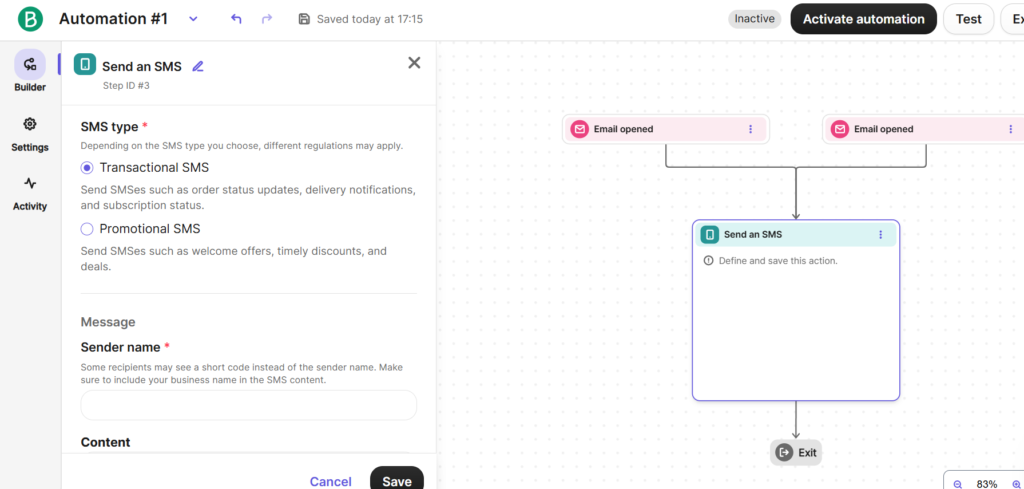
Brevo’s automation builder is accessed via Automations → Workflows → Create an automation. You can start from a prebuilt template (welcome series, abandoned cart, birthday email, re-engagement campaign) or build a custom workflow from scratch. The visual canvas approach — where you drag and connect trigger boxes, action boxes, and condition boxes — makes it surprisingly approachable even for people who’ve never built automation before.
The workflow structure is: trigger → action → condition (optional). A basic welcome series looks like this: trigger = “contact joins newsletter list” → action = “send welcome email” → wait 3 days → action = “send getting started email.” For e-commerce, you’d add: trigger = “cart abandoned” → wait 1 hour → action = “send cart reminder email.” Brevo’s website tracker needs to be installed on your site for page-visit-based triggers to work — it’s a snippet you add to your site’s head section, similar to Google Analytics.
For businesses comparing automation depth, Brevo’s visual builder is solid at the beginner-to-intermediate level. For more complex branching logic and deeper CRM-based automations, tools like ActiveCampaign offer more power — but at a higher price point.
Step 7: How Do You Analyze Campaign Performance in Brevo?
After sending your first campaign, the results show up in Campaigns → Reports. Brevo tracks the core metrics you need: open rate, click rate, hard bounces, soft bounces, unsubscribes, and spam complaints. On Standard plans and above, you also get heat maps showing where subscribers actually click within your email — useful for optimizing button placement and content hierarchy.
What benchmarks should you aim for? According to industry email marketing benchmarks for 2025, average open rates across industries hover around 30–40% and click rates around 2–5%. If your open rate is below 20%, focus on subject line improvement and send-time optimization (try different days and times). If click rates are low but open rates are healthy, the issue is usually with your email content or CTA placement.
One behavior pattern worth noting: Brevo lets you segment based on campaign engagement. You can create a segment of “contacts who opened the last 3 campaigns” and send to your most active subscribers — a simple tactic that keeps your engagement metrics healthy and protects your sender reputation over time.
What Are the Real Pros and Cons of Using Brevo?
✅ What Brevo Does Well
- Generous free plan: 100,000 contacts at €0/month — no credit card required
- Beginner-friendly: Guided onboarding, intuitive campaign flow
- Automation included free: Visual workflow builder even on free (up to 2K contacts)
- CRM built in: Deal pipeline and contact management at every tier
- Email-volume pricing: Pay for sends, not contacts stored
- Multi-channel: Email, SMS, WhatsApp, live chat in one dashboard
- Strong deliverability: 89.1% inbox rate vs 83.1% industry avg (Feb 2025)
- Aura AI native: Built-in AI for content and send-time optimization (no extra account needed)
❌ Where Brevo Falls Short
- Automation cap: Free and Starter limit automations to 2,000 active contacts — Standard required to lift this
- Hidden logo cost: Starter’s “~€7.76/mo” becomes ~€15.52/mo when you add logo removal
- Fewer templates: 40+ email templates vs Mailchimp’s 100+, Omnisend’s 240+
- Account suspensions: New accounts sometimes face slow approval or unexpected suspension (see controversy section)
- Free support is limited: Knowledge base only on free plan; email-only on Starter
- No form templates: Form builder has no prebuilt starting points
- Basic CRM: Included CRM lacks lead scoring and advanced pipeline features
What Controversies Should You Know About Before Using Brevo?
There’s a persistent issue with Brevo that other reviews tend to gloss over: account suspensions. Across Reddit, Trustpilot, and G2, a recurring complaint is that new accounts — and sometimes established ones — get suspended without clear explanation or advance warning. One reader I spoke with had their account suspended claiming it was for “cold emailing violations,” even though they hadn’t sent a single email yet. This pattern is real enough that it’s worth knowing about before you commit.
Common complaints aggregated from G2, Capterra, and Trustpilot reviews include:
- Accounts suspended during or immediately after the validation process, with little explanation
- Support response times that run 24–72 hours on Starter plans, with no phone support until Professional
- Deliverability inconsistency on shared IPs, particularly for newer accounts
- Occasional UI lag between dashboard sections
- The “Starter” plan price being misleading when logo removal is required (effectively doubles the cost)
From my experience: Brevo’s platform is legitimate and works well for users who meet their usage guidelines. The strict validation is a side effect of their commitment to deliverability — they’re protecting all users’ sender reputation by keeping spammers off the platform. But the communication around suspensions could be significantly better. If you’re setting up a business account, be prepared to verify your domain and sending purpose clearly during onboarding, and use a professional business email (not Gmail or Hotmail) as your sender address.
⚠️ If Your Account Gets Suspended
Contact Brevo support immediately with your business details, domain verification, and a clear description of how your contacts opted in. Most legitimate account suspensions are resolved within 2–5 business days. If Brevo can’t resolve your situation, GetResponse and Moosend (Full review) are strong alternatives with more flexible account validation processes.
Who Should Use Brevo — and Who Should Skip It?
✅ Choose Brevo if you:
- Are starting out and want a free plan that doesn’t expire or require a credit card
- Have a large contact list but send emails only 2–4 times per month (email-volume pricing works in your favor)
- Run an e-commerce store on Shopify, WooCommerce, or BigCommerce and want abandoned cart automations
- Need email + SMS + basic CRM in one platform without paying for three separate tools
- Are based in Europe and need GDPR compliance tools built in (double opt-in, consent records)
❌ Skip Brevo if you:
- Need advanced CRM with lead scoring, deep pipeline management, or enterprise reporting — look at HubSpot or ActiveCampaign
- Are a large e-commerce store needing Klaviyo’s depth of Shopify integration and segmentation
- Plan to send cold outreach or unsolicited email — Brevo prohibits this and will suspend your account
- Need 200+ email templates and extensive design options — Mailchimp or Omnisend serve designers better
- Need phone support on a budget — that’s locked behind the Professional plan (~€430.29/mo)
If you’re comparing Brevo to other options in the email marketing space, our Brevo vs GetResponse comparison covers automation depth head-to-head. For a broader view of the category, see our best email marketing software roundup.
Not Sure Brevo Is Right for You?
If you need stronger automation or a larger template library, GetResponse (starts at $19/month, ~€16.38) is a strong alternative with a visual funnel builder included. Moosend is another solid pick for e-commerce with more generous automation on lower plans.
How Can You Improve Email Deliverability in Brevo?
Brevo’s deliverability stands at 89.1% inbox placement as measured by EmailToolTester in February 2025 — well above the 83.1% industry average. But you need to actively maintain it. Here’s what actually moves the needle:
- Domain authentication first: SPF, DKIM, and DMARC via Settings → Domains — covered in Step 2, and it’s genuinely the highest-impact single action you can take
- Use a professional sender domain: Sending from @gmail.com or @yahoo.com hurts your reputation; send from @yourcompany.com
- Enable double opt-in: Confirmed subscribers engage more and complain less — both of which protect your sender score
- Maintain list hygiene: Remove hard bounces immediately; suppress contacts inactive for 90+ days; send a re-engagement campaign before removing long-inactive contacts
- Segment your audience: Sending irrelevant content to your entire list tanks engagement rates and trains email providers to demote your messages
- Consider a dedicated IP: Available as an add-on for ~€216.44/year (verified March 2026); recommended for senders consistently above 3,000 emails per day who want full control over their sending reputation
📊 Email Deliverability Comparison (EmailToolTester, Feb 2025)
Source: EmailToolTester independent deliverability test, February 2025
Frequently Asked Questions About How to Use Brevo
Is Brevo free to use?
Brevo has a free plan that is free forever — no credit card required. It allows up to 300 emails per day (approximately 9,000 per month) with storage for 100,000 contacts. The free plan includes the drag-and-drop editor, 40+ templates, basic automation (limited to 2,000 active contacts), a built-in CRM, segmentation, and campaign analytics. The main limitations are the daily sending cap, Brevo branding on outgoing emails, and single-user access. Upgrading to Starter removes the daily sending limit and costs ~€7.76/month ($9) as of March 2026. For more options, see our best email marketing software comparison.
How do I set up Brevo for the first time?
Setting up Brevo takes approximately 15–20 minutes. Sign up at brevo.com (no credit card required), verify your email, then immediately authenticate your sender domain via Settings → Senders, Domains & Dedicated IPs → Domains. This sets up SPF, DKIM, and DMARC records — the most important deliverability step. Brevo offers automatic authentication for major registrars including GoDaddy and Namecheap. After that, import your contacts via CSV, assign them to a list, create a signup form for ongoing list growth, and send your first campaign.
Does Brevo have automation on the free plan?
Brevo includes automation on the free plan with one important restriction: only 2,000 contacts can be enrolled in automation workflows at any one time. This limit also applies to the Starter plan (~€7.76/month). The Standard plan (~€15.52/month) removes the cap entirely. For lists under 2,000 contacts, the free automation builder is fully capable — you can run welcome series, lead nurturing sequences, and basic e-commerce flows. Once your automation-eligible list exceeds 2,000 contacts, you’ll need to upgrade to Standard.
How do I remove the Brevo logo from my emails?
The “Sent with Brevo” footer appears on all free plan emails. On Starter, you can remove it by purchasing the “Remove Brevo logo” add-on for $9/month (~€7.76/month as of March 2026). On Standard (~€15.52/month) and above, the logo is removed automatically — no add-on needed. Here’s the practical implication: adding the logo removal to a Starter plan costs ~€7.76 + ~€7.76 = €15.52/month total — exactly the same as Standard. At that point, upgrading to Standard makes more sense since it also adds unlimited automation, A/B testing, and landing pages.
What’s the difference between Brevo Starter and Standard?
Starter (~€7.76/month, $9) removes the daily sending limit but keeps automations capped at 2,000 contacts with no A/B testing, no landing pages, and no advanced reporting. Standard (~€15.52/month, $18) unlocks unlimited automation contacts, A/B testing, landing pages, advanced analytics with heat maps, predictive send-time optimization, and up to 3 users. For most growing businesses, Standard is the better long-term value — Starter’s automation cap and lack of A/B testing become bottlenecks quickly. EUR prices based on 1 USD = €0.8623, verified March 2026.
How do I set up automation workflows in Brevo?
Go to Automations → Workflows → Create an automation. Start from a prebuilt template (welcome series, abandoned cart, birthday campaign) or build from scratch. Set an entry trigger: contact joins a list, opens an email, visits a specific page (requires Brevo website tracker), or makes a purchase. Then add actions (send email, wait X days, update contact attribute) and optional conditions (if/else splits based on behavior). Test the workflow with a test contact before activating. Monitor performance in the workflow statistics view. Remember: on free and Starter plans, only 2,000 contacts can be active in workflows at one time.
How does Brevo compare to Mailchimp for beginners?
Brevo charges based on emails sent, while Mailchimp charges based on contacts — making Brevo significantly cheaper for large lists. Brevo’s free plan supports 100,000 contacts; Mailchimp’s free plan was cut to 500 contacts. Brevo includes a built-in CRM and SMS at no extra cost. Mailchimp has a larger template library (100+ vs Brevo’s 40+) and more advanced reporting on paid tiers. For budget-conscious beginners with growing lists, Brevo typically wins on price. For businesses needing premium templates or more established platform documentation, Mailchimp may be worth the higher cost. See our Mailchimp alternatives guide for a broader comparison.
Is Brevo good for e-commerce?
Brevo works well for small to medium e-commerce stores. It integrates natively with Shopify, WooCommerce, BigCommerce, and Magento. You can build abandoned cart automations, product recommendation emails, order confirmation transactional emails, and post-purchase sequences. The multi-channel approach (email + SMS + WhatsApp on Professional) is useful for e-commerce follow-ups at different touchpoints. For large operations needing deep native Shopify integrations, advanced segmentation by purchase behavior, or SMS-first workflows, Klaviyo or Omnisend offer more e-commerce-specific depth.
What is Aura AI in Brevo, and is it any good?
Aura AI is Brevo’s built-in AI assistant, launched in May 2025. It’s accessible directly from the campaign editor and dashboard — no separate account or API key needed. It generates subject lines, full email body copy, and CTAs based on brief prompts, and can adjust tone and translate content into multiple languages. On Standard+ plans, it adds predictive send-time optimization based on historical subscriber behavior. In my testing, the subject line generator is the most useful feature — it produces solid options quickly. The body copy generation is decent for drafts but usually needs human editing. Available on all plans including free.
How do I improve email deliverability in Brevo?
Authenticate your domain first via Settings → Domains (SPF, DKIM, DMARC). Then: use a professional sender domain (not Gmail or Yahoo), enable confirmed double opt-in for new signups, remove hard bounces immediately after each campaign, suppress contacts inactive for 90+ days, and segment your audience to avoid sending irrelevant content. For senders consistently above 3,000 emails per day, consider a dedicated IP (~€216.44/year as of March 2026) to isolate your sender reputation from other Brevo users. Brevo achieved 89.1% inbox placement in February 2025 (EmailToolTester) — above the 83.1% industry average.
Ready to Send Your First Campaign?
Brevo’s free plan gets you started in 20 minutes — 100,000 contacts, no credit card, no expiry. Upgrade when you’re ready to scale.
Free forever · No credit card required · Cancel or upgrade anytime
Related Guides
- 📊 GetResponse vs Brevo: Full Comparison — Which platform wins on automation and pricing?
- 📧 Best Email Marketing Software in 2026 — Tested and ranked across 12 platforms
- 🔄 Email Marketing Automation Guide — From basic sequences to advanced workflows
- 🆚 Best Mailchimp Alternatives — For when Mailchimp’s contact-based pricing gets too expensive
- 🏠 GetResponse vs ActiveCampaign — Comparing automation depth at similar price points
- 🚀 Best Landing Page Builders — For building high-converting signup pages alongside your email campaigns
Pricing verified March 5, 2026. EUR conversions based on 1 USD = €0.8623 (XE.com, March 5, 2026). Prices subject to change — verify current pricing at brevo.com/pricing before purchasing.