

⚡ Quick Answer
Rytr is an AI writing assistant that helps you create content in seconds. To use it: (1) Sign up at rytr.me, (2) Select your language, tone, and use case, (3) Enter your topic/keyword, (4) Click “Ryte for Me” to generate content. Best for short-form content like product descriptions, social posts, and email copy. Struggles with long-form articles (2000+ words).
Look, I’ve spent the past few weeks diving deep into Rytr—testing every feature, pushing its limits, and figuring out exactly how to get the best results from this AI writing tool.
Here’s the thing: Rytr is ridiculously easy to use. Like, “create your first piece of content in under 60 seconds” easy. But there’s a huge difference between using Rytr and using it well.
Most guides show you the basics and call it a day. This tutorial goes deeper. I’ll show you the exact workflow I use to generate high-quality content, the advanced features most people ignore (Chrome extension, Rytr Chat, Brand Voice), the common mistakes that waste your character limits, and most importantly—when Rytr works brilliantly and when it falls flat on its face.
By the end of this guide, you’ll know how to squeeze maximum value from Rytr’s free plan, whether the paid tiers are worth it for your needs, and exactly which content types Rytr handles like a champion (spoiler: it’s not long blog posts).
🚀 Ready to Try Rytr?
Start with the free plan—10,000 characters/month with access to all 40+ use cases, 20+ tones, and 30+ languages. No credit card required.
Takes 2 minutes to set up. Upgrade only if you need unlimited characters.
What Is Rytr? (And What It Actually Does Well)
Rytr is an AI-powered writing assistant built on GPT-3 technology that helps you generate content across 40+ different use cases—from blog outlines and product descriptions to social media posts and email copy.
Founded in April 2021, Rytr has grown to over 8 million users worldwide, making it one of the most popular AI writing tools on the market. The appeal? It’s stupidly affordable ($9/month for unlimited content) and genuinely easy to use, even if you’ve never touched an AI tool before.
But here’s what nobody tells you: Rytr is a specialist, not a generalist.
It absolutely crushes short-form content. Product descriptions? Fantastic. Social media captions? Excellent. Email subject lines? Some of the best I’ve tested. But ask it to write a cohesive 2,000-word article, and you’ll get repetitive, generic content that needs heavy editing.
Think of Rytr as your quick-response content assistant—perfect for those “I need 10 Instagram captions right now” moments or “I can’t think of a good meta description” situations. It’s not trying to replace professional writers (and honestly, it can’t). It’s trying to speed up the parts of writing that feel tedious.

According to G2 user reviews, Rytr maintains a 4.8/5 rating with consistent praise for its ease of use and template variety, though users frequently mention that “it’s not a replacement for quality writing—it’s a starting point.”
That’s the most honest take on Rytr you’ll get. Use it as a starting point, layer in your expertise and editing, and you’ll love it. Expect publish-ready content without any work? You’ll be disappointed.
For a broader comparison of AI writing tools and how Rytr stacks up against alternatives, check out our guide to the best AI writing tools.
Getting Started: How to Sign Up and Set Up Rytr (Takes 2 Minutes)
Real talk: Rytr has the fastest setup process I’ve tested among AI writing tools. No payment required, no lengthy onboarding surveys, no complex configuration. Here’s exactly how it works.
Step 1: Create Your Account
Head to rytr.me and click the “Start Ryting” button (yes, they spell it that way throughout the app—get used to it).
You have four sign-up options:
- Email + Password – Standard registration
- Google account – One-click sign-up (fastest)
- Facebook account – Social login
- LinkedIn account – Professional login
I went with Google because it’s literally two clicks. Pick whichever you prefer.
Step 2: Verify Your Email
If you signed up with email, check your inbox for a verification link. Click it. Done.
If you used Google/Facebook/LinkedIn, you skip this step entirely.
Step 3: Complete the Quick Onboarding
Rytr asks one simple question: “What are you here for?”
Two options:
- “Writing emails, messages, and replies” – Best if you’re focused on communication content
- “Writing articles and marketing content” – Best for blogs, social media, ads
This just customizes which templates appear first in your dashboard. You get access to all 40+ use cases regardless of what you pick, so don’t overthink it.
There’s also an optional 3-minute tutorial video. I watched it. It’s helpful if you’ve never used AI writing tools before, but you can skip it and figure things out as you go.
Step 4: Land in Your Dashboard
And you’re in. Total time? About 2 minutes if you used Google login.
Your dashboard has four main sections:
- Documents – Where all your saved content lives (organized in folders if you want)
- Write – The main content creation interface
- Chat – Conversational AI interface (like ChatGPT, but Rytr-specific)
- History – Every piece of content you’ve ever generated
The free plan gives you 10,000 characters per month. For context, that’s roughly 1,500-2,000 words—enough for about 10 social media posts, 5 product descriptions, or 2-3 blog outlines.
💡 Pro Tip: Monitor Your Character Count
Free plan users: Check your remaining characters in the top-right corner of the dashboard. Each variant you generate counts separately (generate 3 variants = 3x the character cost). Use the character counter strategically—generate 1-2 variants first, see which you prefer, then generate more if needed.
Rytr Dashboard Navigation: Understanding the Interface
Before we dive into creating content, let’s get oriented. Rytr’s interface is intentionally simple, but there are a few sections worth knowing about.
Top Navigation Bar
- Search – Find past documents by keyword
- Settings – Account preferences, password changes, plan details
- Character limit indicator – Shows remaining characters (Free plan) or “Unlimited” (paid plans)
- Profile menu – Access your account, billing, referral program
Left Sidebar
This is where the magic happens:
- Documents – View all saved projects (you can create folders to organize)
- Write – Main content creation area
- Chat – Rytr Chat for conversational AI interactions
- History – Every output you’ve generated (searchable and filterable)
- Tools – Brand Voice setup, Plagiarism Checker
Main Content Area
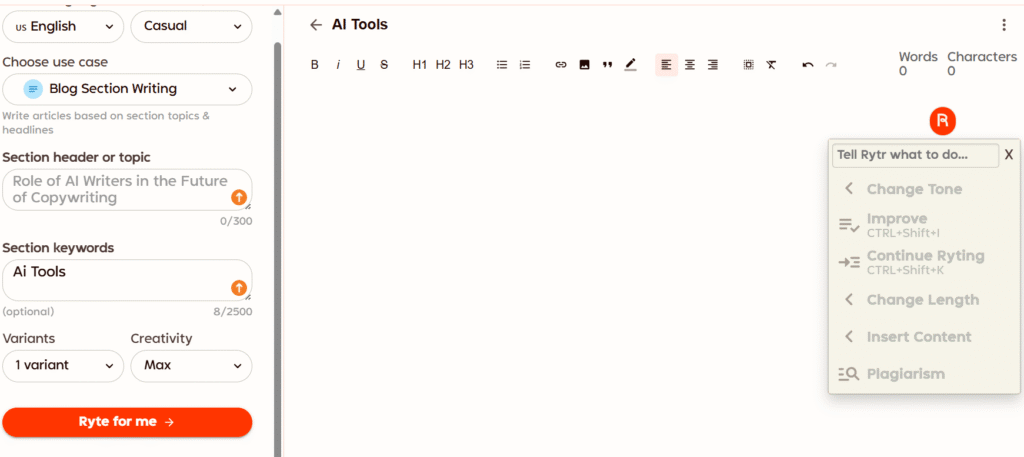
When you’re in the “Write” section, you’ll see:
- Left panel – Configuration options (language, tone, use case, prompt input)
- Right panel – Rich text editor where generated content appears
- Top toolbar – Document title, export options, save button
The interface is deliberately minimal. There’s no overwhelming array of buttons or nested menus. Everything is one or two clicks away.
How to Create Your First Piece of Content with Rytr
Alright, enough setup talk. Let’s actually generate some content.
I’m going to walk you through the exact process I use every time, using a real example: creating an Instagram caption for a hypothetical AI tool launch.
Step 1: Create a New Document
Click Documents in the left sidebar, then click the “New Document” button.
Give it a descriptive title—something like “Instagram Captions – AI Tool Launch” so you can find it later. The document opens in the rich text editor.
Step 2: Select Your Language
Top-left dropdown: choose from 30+ languages.
Available languages include English, Spanish, French, German, Italian, Dutch, Chinese, Arabic, Hindi, Polish, Turkish, and more. For this example, I’m sticking with English.
Important: Choose your language before entering any prompts. Switching languages mid-project can produce weird results.
Step 3: Choose Your Tone of Voice
This is where Rytr starts to shine. You get 20+ tone options:
- Professional tones: Convincing, Formal, Informational
- Creative tones: Casual, Humorous, Awestruck, Passionate
- Specific contexts: Urgent, Worried, Humble, Appreciative, Inspirational
For an Instagram caption announcing an AI tool, I chose “Excited” tone. The content needs energy and enthusiasm, not formal corporate speak.
You can adjust tone later by highlighting text and using the “Rephrase” feature (more on that below).
Step 4: Select Your Use Case
This is the template that guides Rytr’s content structure. The dropdown organizes 40+ use cases by category:
Blog & Articles:
- Blog Idea & Outline
- Blog Section Writing
- SEO Meta Title
- SEO Meta Description
Email & Messages:
- Reply to Reviews & Messages
- SMS & Notifications
Social Media:
- Post & Caption Ideas
- Facebook/Instagram/LinkedIn Posts
- Social Media Bio
- YouTube Video Description
Marketing & Ads:
- Google Search Ads
- Product Description
- Landing Page Copy
- Call to Action
Creative Writing:
- Story Plot
- Song Lyrics
- Poem Generator
For my example, I selected “Post & Caption Ideas” under Social Media.
If you’re on a paid plan, you can also create Custom Use Cases for repetitive content types specific to your business.
Step 5: Enter Your Primary Keyword or Context
This is the most important part. Vague prompts produce vague content.
You have two input fields:
- Primary Input (required): Up to 50 characters for your main topic/keyword
- Context/Details (optional): Up to 125 characters for additional information
Bad prompt: “AI tool launch”
Good prompt:
Primary Input: “AI writing assistant launch”
Context: “Helps marketers create content 10x faster with GPT-4, free trial available, emphasize time-saving benefit”
The more specific you are, the better Rytr’s output. Always include:
- What the content is about
- Key benefits or features to highlight
- Any specific details that must be included
Step 6: Set Number of Variants
Choose how many different versions Rytr generates: 1, 2, or 3.
Each variant counts against your character limit (if you’re on the free plan).
My strategy: Generate 2 variants first. If neither is quite right, generate 1 more. This saves characters while giving you options.
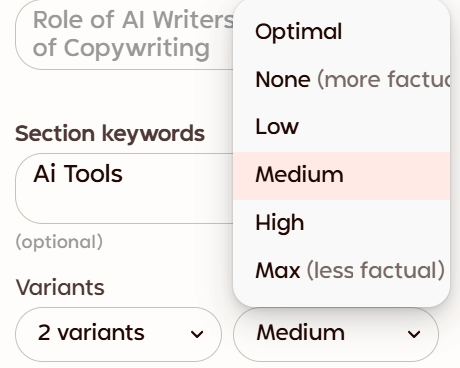
Step 7: Adjust Creativity Level
This slider controls how factual vs. creative the output is:
- None/Optimal: More factual, less creative (good for product descriptions, reports, informational content)
- Medium: Balanced approach (good for most content)
- Max: Less factual, more creative (good for stories, poetry, imaginative content)
For social media captions, I set it to Medium-High. I want creativity and energy, but still coherent messaging.
Step 8: Click “Ryte for Me”
Hit the big purple button and watch the magic happen.
Rytr generates content in 2-5 seconds. The output appears in the right-hand editor panel.
For my Instagram caption example, here’s what I got (2 variants):
Variant 1:
“🚀 Say goodbye to writer’s block! Our new AI writing assistant is here to supercharge your content creation. Create blog posts, social captions, emails 10x faster. Try it free today! #AIWriting #ContentCreation #MarketingTools”
Variant 2:
“Content creation just got a serious upgrade ⚡ Meet your new AI-powered writing partner—built for marketers who need quality content, fast. Start your free trial and see the difference. Link in bio! #AI #Marketing #Productivity”
Both are solid starting points. Not perfect, but exactly what I expect from a tool like Rytr: 80% there, needs 20% human polish.
I’d probably combine elements from both—take the energy from Variant 1 and the professional tone from Variant 2.
Step 9: Edit and Refine the Generated Content
This is where most people go wrong. They copy the first output and paste it directly wherever they need it.
Don’t do that.
Rytr gives you editing tools specifically designed to improve the initial output. Here’s how to use them:
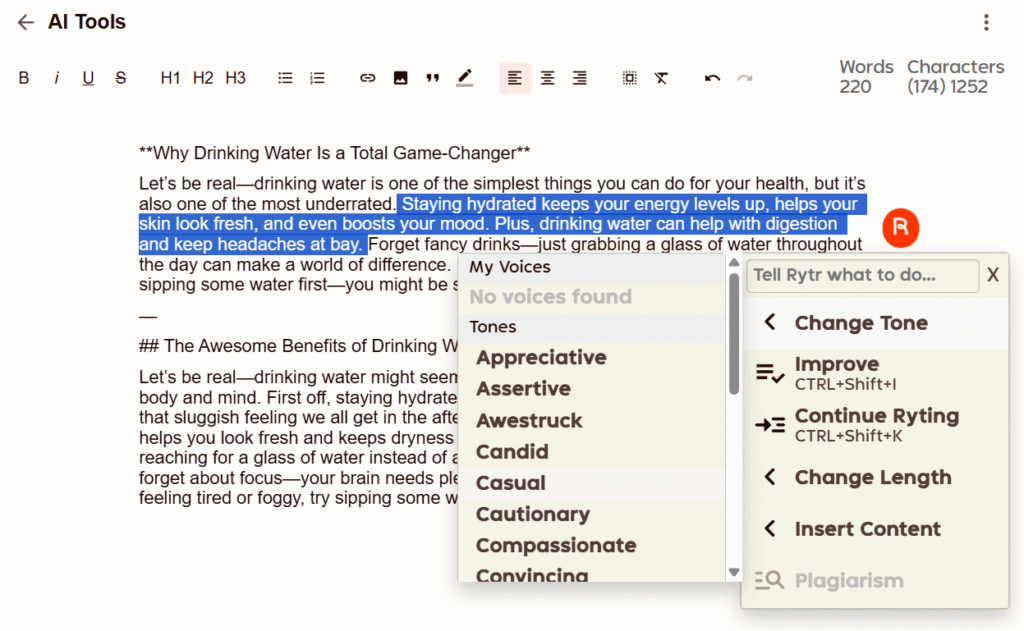
Highlight any text in the editor. A small toolbar appears with these options:
- Improve (Ctrl + Shift + I): Enhances clarity and grammar
- Rephrase: Rewrites in different words while keeping the meaning
- Expand: Adds more detail and context
- Shorten: Condenses text while retaining key points
- Continue Ryting: AI continues writing from where you left off
- Paragraph (Ctrl + Shift + P): Generates a new paragraph on the topic
Let’s say I want Variant 1 to sound less generic. I highlight the first sentence and click “Rephrase.”
New version: “Writer’s block? Not anymore. Our AI writing assistant just launched—and it’s about to change how you create content.”
Better. More conversational, less cliché.
You can also use Magic Command for custom instructions:
- Highlight text → Click the command icon
- Type: “Make this more persuasive” or “Add urgency” or “Include a call-to-action”
- Rytr rewrites based on your instruction
Step 10: Format and Finalize
The editor includes standard formatting options:
- Text formatting: Bold, italic, underline
- Headings: H1, H2, H3
- Lists: Bullet points, numbered lists
- Links and images: Add hyperlinks, insert images
- Block quotes: Highlight important text
Clean up formatting, add any emojis or hashtags (for social content), and you’re done.
Step 11: Export or Copy Your Content
Click the three dots in the top-right corner of the editor. You get two export options:
- .docx (Microsoft Word): Downloads a Word document
- .html: Downloads web-ready HTML file
Or just copy/paste directly from the editor into wherever you need it—WordPress, email client, social media scheduler, etc.
Your content automatically saves to your Documents library, so you can always come back to it later.
✅ First Content Generated—What’s Next?
Now you know the basic workflow. But Rytr has advanced features most beginners miss: the Chrome extension (use Rytr anywhere on the web), Rytr Chat (conversational AI), Brand Voice (mirror your writing style), and the plagiarism checker. I’ll cover these next.
Advanced Rytr Features You Shouldn’t Ignore
Okay, you can generate content. Great. But if you stop there, you’re missing 50% of Rytr’s value.
Here are the advanced features that actually make a difference in your workflow.
1. Plagiarism Checker (Powered by Copyscape)
Rytr integrates with Copyscape to check if your AI-generated content matches existing web content.
How to use it:
- Highlight any text in your document (up to 1,600 characters per check)
- Click “More” in the editing toolbar
- Select “Plagiarism”
- Rytr scans the web and shows exact matches
What you get with each plan:
- Free plan: Unlimited checks, but they count against your 10,000 character limit
- Unlimited plan: 50 dedicated checks per month (doesn’t count against character limit)
- Premium plan: 100 dedicated checks per month
Why this matters: AI models are trained on existing content. Sometimes they generate text that’s too similar to published work. Always check before publishing—especially for commercial content.
In my testing, about 1 in 10 outputs flagged minor matches (usually common phrases or industry jargon). Anything above 5% similarity, I rewrite or rephrase.
2. Chrome Extension (Use Rytr Anywhere)
This is genuinely one of Rytr’s best features, and most people don’t even know it exists.
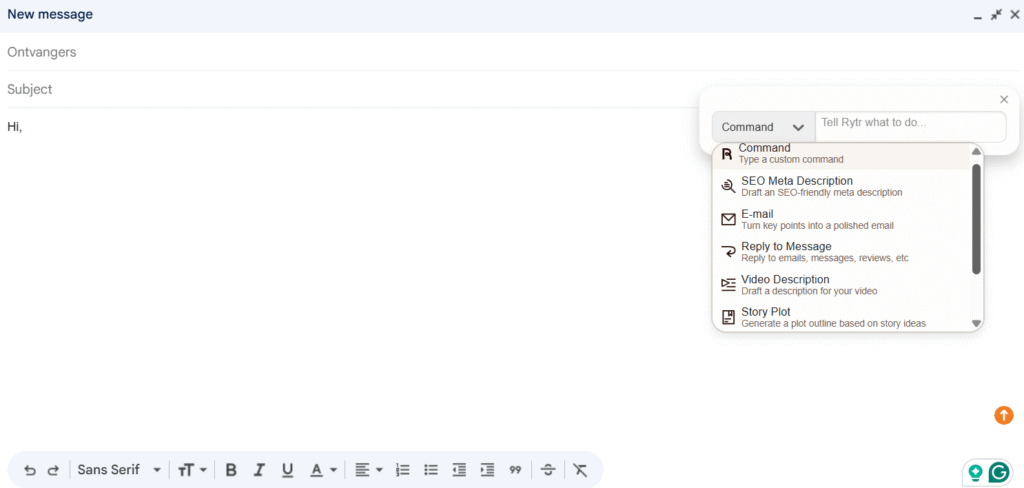
The Chrome extension lets you access Rytr’s AI on any webpage—Gmail, Google Docs, LinkedIn, Twitter, Facebook, your WordPress editor, anywhere you write text.
How to set it up:
- Go to the Chrome Web Store
- Search “Rytr – AI Writing Assistant”
- Click “Add to Chrome”
- Log in with your Rytr account
How to use it:
Right-click in any text field → Select “Rytr” from the context menu → Choose a use case → Generate content directly in that field.
Real-world example: I use this constantly in Gmail. Right-click in the email compose box, select “Email Writing,” enter my context (e.g., “Follow-up email to client about project deadline”), and Rytr generates a professional email draft right there. No switching tabs, no copy/paste.
Works flawlessly on:
- Gmail (email drafts)
- LinkedIn (posts, comments, messages)
- Twitter/X (tweets, replies)
- Facebook (posts, comments)
- Google Docs (anywhere in the document)
- WordPress (post editor, comments)
- Any CMS or text editor
The extension respects your character limits, so if you’re on the free plan, it still counts toward your 10,000/month.
3. Rytr Chat (Conversational AI Interface)
Think ChatGPT, but built specifically for content creation with Rytr’s framework.
Rytr Chat is useful when:
- You don’t know which use case fits your needs
- You want back-and-forth refinement on an idea
- You need quick suggestions or brainstorming
- You’re exploring multiple angles for the same topic
Access it from the Chat tab in your dashboard.
Example conversation:
Me: “I need caption ideas for a product launch—new AI tool for small businesses.”
Rytr Chat: “Great! What tone are you going for? Professional, casual, or energetic?”
Me: “Energetic but not over-the-top. Target audience is busy founders.”
Rytr Chat: Generates 5 caption options with different hooks and CTAs.
You can continue refining: “Make option 3 shorter” or “Add urgency to option 2” or “More emphasis on time-saving.”
It’s more flexible than the template-based approach, but also less structured. Use Chat when you’re exploring ideas. Use the standard Write interface when you know exactly what you need.
4. Brand Voice / My Voice (Mirror Your Writing Style)
Note: This feature requires a paid plan (Unlimited or Premium).
Brand Voice lets you upload samples of your writing, and Rytr analyzes your style—tone, vocabulary, sentence structure, pacing—and mirrors it in future content.
How to set it up:
- Go to Tools → Brand Voice
- Create a new voice profile (you can have multiple for different clients/projects)
- Upload 500-1,000 words of your existing writing
- Rytr analyzes and creates a custom tone
- Select this tone when generating content
In my testing, this works surprisingly well for maintaining consistency across content. If you’re managing multiple client accounts or have a very specific brand voice, it’s worth upgrading for this feature alone.
Example: I uploaded 800 words from my blog posts (conversational, first-person, slightly sarcastic tone). When I generated new content with “My Voice” selected, it matched my style way better than the generic “Casual” tone.
5. AI Image Generator
Rytr includes an AI image generator (similar to DALL-E or Midjourney).
Availability:
- Free plan: ❌ No access
- Unlimited plan: 20 images per month
- Premium plan: 100 images per month
How to use it:
- In your document, describe the image you want
- Highlight the description
- Click the image generation icon
- Rytr creates a custom visual based on your description
Quality is decent for social media graphics, blog headers, and presentation visuals. Not professional enough for high-end branding, but totally usable for content marketing.
6. SERP Analyzer (Basic SEO Tool)
Rytr includes a basic SERP (Search Engine Results Page) analyzer to help with keyword research.
What it does:
- Shows keyword clustering suggestions
- Analyzes competitor content
- Suggests related keywords
What it doesn’t do:
- Provide search volume data
- Show keyword difficulty scores
- Offer backlink analysis
- Track rankings
According to Moz’s SEO guide, comprehensive keyword research requires volume and difficulty metrics—which Rytr’s tool lacks. If SEO is critical to your strategy, use dedicated tools like Ahrefs, SEMrush, or even free options like Ubersuggest alongside Rytr.
Bottom line: Rytr’s SERP analyzer is a nice bonus for quick keyword ideas, but don’t rely on it for serious SEO work.
🔥 Upgrade to Unlock Full Potential
Free plan is great for testing, but Unlimited plan ($9/month) removes character limits and adds Brand Voice, AI images, and priority support. If you create content regularly, it pays for itself in the first week.
Best Practices: How to Get the Best Results from Rytr
After weeks of testing, here’s what actually works.
1. Be Hyper-Specific with Your Prompts
Vague input = vague output. Always.
Instead of: “Write about marketing”
Try: “Write a 200-word introduction about email marketing automation for small e-commerce businesses, emphasizing time savings and revenue growth”
The more context you provide—audience, word count, key benefits, specific details—the better Rytr performs.
2. Start with Outlines, Then Write Sections
Don’t ask Rytr to write a 2,000-word article in one shot. It can’t. The output gets repetitive and loses coherence.
Better workflow:
- Use “Blog Idea & Outline” to generate article structure
- Review the outline, adjust as needed
- Use “Blog Section Writing” for each H2/H3
- Combine sections manually
- Edit for flow and consistency
This approach produces far better long-form content than trying to generate it all at once.
3. Match Creativity Level to Content Type
Not all content needs maximum creativity.
- None/Optimal: Product descriptions, how-to guides, reports, technical content
- Medium: Blog posts, emails, general marketing content
- Max: Social media captions, ad copy, creative writing, storytelling
I’ve found Medium works for 80% of content types. Adjust up or down based on results.
4. Layer Your Edits (Don’t Accept First Draft)
This is the single biggest mistake I see: people generate content and immediately use it without editing.
My workflow:
- Generate initial content
- Use “Improve” to fix grammar and clarity
- Use “Expand” on key points that need more detail
- Use “Rephrase” on any sections that sound generic
- Add human touch: personal insights, specific examples, brand voice
The editing tools exist for a reason. Use them.
5. Generate Multiple Variants, Then Mix and Match
Rarely is one variant perfect. Usually, variant 1 has a great opening, variant 2 has better body content, and variant 3 has the strongest call-to-action.
Generate 2-3 variants, then cherry-pick the best parts from each. This creates better content than relying on a single output.
6. Always Fact-Check Data and Statistics
Rytr (like all AI writing tools based on GPT-3) can generate plausible but completely wrong information.
If your content includes:
- Statistics or percentages
- Dates or historical facts
- Technical specifications
- Scientific claims
- Legal or medical information
Verify every single claim before publishing. AI doesn’t have a concept of truth—it predicts what words should come next based on patterns in training data.
7. Use the Chrome Extension for Quick Tasks
Don’t open Rytr’s full dashboard for every single task.
Quick email reply? Chrome extension.
Social media comment response? Chrome extension.
Product description tweak? Chrome extension.
Save the main dashboard for longer projects that need organization and editing.
8. Organize Your Work with Folders
If you use Rytr regularly, your Documents library fills up fast.
Create folders by:
- Client (if you’re a freelancer/agency)
- Content type (Blogs, Social Media, Emails)
- Project (Product Launch, Holiday Campaign)
Rytr’s search is okay, but folder organization is faster.
9. Review, Don’t Just Read—AI Misses Nuance
AI-generated content often lacks:
- Specific real-world examples
- Personal perspective or unique insights
- Emotional depth or storytelling
- Cultural sensitivity and context
Your job isn’t just to check grammar. It’s to add the human elements that make content compelling.
10. Test Different Tones for the Same Content
Sometimes the difference between good and great content is just the tone.
Example: I was writing a LinkedIn post about productivity. Generated it with “Professional” tone—boring. Switched to “Conversational”—way better engagement.
Don’t be afraid to regenerate with different tones if the first result doesn’t feel right.
Common Mistakes to Avoid When Using Rytr
Let me save you some frustration. Here are the mistakes I made (so you don’t have to).
Mistake #1: Using Vague Prompts
What people do: “Write something about AI”
What happens: Rytr generates generic, unfocused content that’s basically useless.
Fix: Always include: (1) specific topic, (2) target audience, (3) desired word count, (4) key points to cover.
Mistake #2: Not Reviewing for Accuracy
What people do: Trust everything AI generates without fact-checking.
What happens: Publish content with incorrect statistics, outdated information, or complete fabrications.
Fix: Verify every factual claim, statistic, date, and technical detail before publishing. AI predicts words, it doesn’t verify truth.
Mistake #3: Ignoring Character Limits (Free Plan)
What people do: Generate 3 variants of everything, burn through their 10,000 characters in two days.
What happens: Account locked until next month, or forced to upgrade.
Fix: Monitor your character count (top-right corner). Generate 1-2 variants first, see which you prefer, then generate more only if needed.
Mistake #4: Using the Wrong Use Case
What people do: Use “Blog Outline” when they actually want full paragraphs, or “Email” for social media posts.
What happens: Output doesn’t match expectations because the template is designed for a different structure.
Fix: Match use case to content type. If you’re unsure, use Rytr Chat instead—it’s more flexible.
Mistake #5: Skipping the Plagiarism Check
What people do: Assume AI-generated content is automatically original.
What happens: Accidentally publish content that closely matches existing web content, which can hurt SEO or create copyright issues.
Fix: Always run plagiarism check before publishing, especially for commercial content. Limit: 1,600 characters per check, so check section by section for longer pieces.
Mistake #6: Expecting Perfect Long-Form Content
What people do: Ask Rytr to write a 2,000-word article in one generation.
What happens: Repetitive content that loses coherence after 500 words, generic filler, lack of logical flow.
Fix: Use Rytr for building blocks (outlines, sections, specific paragraphs), then combine and edit manually. It’s an assistant, not a replacement writer.
Mistake #7: Not Using Editing Tools
What people do: Generate content once, copy it, paste it, done.
What happens: Publish mediocre content that sounds robotic and generic.
Fix: Use Improve, Rephrase, Expand, and Shorten to refine the output. The first generation is rarely the best version.
Mistake #8: Forgetting to Save Work
What people do: Generate content, copy it elsewhere, close the tab without saving the document.
What happens: Lose access to the original version if you need to reference or revise it later.
Fix: Content auto-saves to Documents, but name your documents descriptively so you can find them later. Export/download important work as backup.
Mistake #9: Over-Relying on AI
What people do: Let Rytr write everything without adding personal insights, examples, or expertise.
What happens: Generic content that sounds like every other AI-generated piece—no unique perspective, no real value.
Fix: AI provides the framework. You add the expertise. Include personal experiences, specific examples, contrarian opinions, and unique insights that AI can’t generate.
Mistake #10: Not Adjusting for Different Platforms
What people do: Use the same tone and style for blog posts, LinkedIn, Twitter, and Instagram.
What happens: Content doesn’t resonate because each platform has different norms and audience expectations.
Fix: Adjust tone and format per platform. LinkedIn = Professional. Instagram = Casual. Twitter = Concise and punchy. Blog = Informative and detailed.
⚠️ The Most Expensive Mistake: Thinking AI Replaces Human Creativity
Rytr is a tool, not a magic button. The marketers, writers, and content creators who get the best results treat it as a collaborative assistant—AI handles the tedious first draft, humans add strategy, insight, and polish. Anyone using Rytr (or any AI writing tool) as a complete replacement will produce forgettable content that gets ignored.
Rytr Pricing Plans Explained (USD + EUR)
Let’s talk money. Rytr is one of the most affordable AI writing tools on the market, but is it worth it? And which plan actually makes sense?
Here’s the complete breakdown with both USD and EUR pricing (exchange rate: 1 USD = €0.847 as of February 4, 2026).
Free
$0/month
€0/month
- ✅ 10,000 characters/month
- ✅ 40+ use cases
- ✅ 20+ tones of voice
- ✅ 30+ languages
- ✅ Chrome extension
- ✅ Plagiarism checker*
- ⚠️ No custom use cases
- ⚠️ No AI images
- ⚠️ No Brand Voice
Best for: Testing Rytr, very light usage (1-2 pieces/week)
Unlimited
$9/month
€7.62/month
Save 17%: $7.50/month (€6.35) billed annually
- ✅ Everything in Free
- ✅ Unlimited characters
- ✅ Custom use cases
- ✅ 50 plagiarism checks/month
- ✅ 20 AI images/month
- ✅ Brand Voice feature
- ✅ Priority support
Best for: Freelancers, bloggers, regular content creators
Premium
$29/month
€24.56/month
Save 17%: $24.16/month (€20.46) billed annually
- ✅ Everything in Unlimited
- ✅ 100 plagiarism checks/month
- ✅ 100 AI images/month
- ✅ Multiple brand voices
- ✅ Dedicated account manager
- ✅ Priority email & chat support
- ✅ Team collaboration
- ✅ API access
Best for: Teams, agencies, businesses
*Free plan plagiarism checks count against your 10,000 character limit
Which Plan Should You Choose?
Choose Free if:
- You’re testing Rytr for the first time
- You only need occasional content (1-2 social posts per week)
- You’re using other AI tools and want Rytr as a backup
Choose Unlimited if:
- You create content regularly (daily or several times per week)
- You need consistent brand voice across content
- Character limits stress you out
- You want AI images for social media or blog posts
Choose Premium if:
- You manage content for multiple clients or brands
- You need team collaboration features
- You want API access for custom integrations
- You require dedicated support
My recommendation: Start with Free to test the platform. If you’re still using it after two weeks and running into character limits, upgrade to Unlimited. The $9/month is honestly a steal for unlimited AI-generated content—that’s less than a single Starbucks latte per month.
Premium is overkill for solo creators. Only upgrade if you genuinely need team features or API access.
How Rytr Pricing Compares to Competitors
| Tool | Cheapest Paid Plan | Character/Word Limit | Best For |
|---|---|---|---|
| Rytr | $9/month (€7.62) | Unlimited | Short-form content, beginners |
| Copy.ai | $49/month | Unlimited | Marketing workflows, automation |
| Jasper AI | $49/month | Unlimited | Long-form content, SEO |
| Writesonic | $19/month | Unlimited | Blog posts, articles |
Rytr is hands-down the cheapest option for unlimited content. If budget is a concern and you primarily need short-form content, Rytr wins.
For a detailed comparison of Rytr against other AI writing tools, check out our complete Rytr review.
When to Use Rytr vs. Other AI Writing Tools
Rytr isn’t the best tool for every situation. Here’s when it works brilliantly—and when you should use something else.
Use Rytr When You Need:
- Short-form content: Product descriptions, social media captions, email subject lines, ad copy, meta descriptions (Rytr excels here, 9/10)
- Budget-friendly solution: $9/month beats every competitor for unlimited content
- Quick content generation: Need 10 Instagram captions in 5 minutes? Rytr crushes this.
- Beginner-friendly interface: No learning curve, intuitive design
- Chrome extension workflow: Generate content directly in Gmail, social platforms, Google Docs
Use Alternatives When You Need:
- Long-form blog articles (2000+ words): Use Jasper AI or Writesonic—they handle long-form better (Rytr’s long-form = 4/10)
- Advanced SEO optimization: Use Jasper, Scalenut, or Frase—Rytr’s SERP analyzer is too basic
- Technical documentation: Use ChatGPT Plus or Claude—Rytr struggles with depth and accuracy
- GPT-4 quality: Rytr uses GPT-3, which produces more generic content than GPT-4 tools
- Workflow automation: Use Copy.ai—better for multi-step content workflows
Real-World Use Case Comparison
Scenario: E-commerce store needs product descriptions
Winner: Rytr (fast, affordable, perfect for short descriptions)
Scenario: Marketing agency needs 2,000-word SEO blog posts weekly
Winner: Jasper AI or Writesonic (better long-form coherence and SEO tools)
Scenario: Freelance writer needs email copy and social captions
Winner: Rytr (budget-friendly, Chrome extension is game-changer)
Scenario: SaaS company needs technical documentation
Winner: ChatGPT Plus or Claude (better accuracy, reasoning, depth)
Scenario: Social media manager needs 50+ posts per week
Winner: Rytr (speed, volume, affordability unbeatable)
🎯 Best Use Cases for Rytr
Short-Form Content (9/10): Product descriptions, social media captions, email subject lines, ad copy, meta descriptions—Rytr excels at quick, punchy content under 300 words.
⚠️ When NOT to Use Rytr
Long-Form Content (4/10): Full blog articles (2000+ words), whitepapers, technical documentation—Rytr becomes repetitive and loses coherence. Better for outlines and individual sections that you combine manually.
The Rytr Controversy You Should Know About
Look, I need to address something uncomfortable that most Rytr reviews conveniently ignore: the limitations of GPT-3 and the quality debate.
Here’s the thing: Rytr runs on GPT-3 technology, which is now two generations behind the latest AI models (GPT-4 and GPT-4o). This matters because newer models produce significantly more nuanced, contextually aware, and less generic content.
Reddit threads and user reviews on TrustPilot consistently mention these pain points:
- “Content sounds robotic and generic” – GPT-3’s output lacks the natural flow and variability of GPT-4
- “Repetitive phrasing in longer pieces” – After 500-600 words, Rytr starts recycling sentence structures
- “Fact-checking is mandatory” – AI confidently generates plausible but incorrect information
- “Not publish-ready without heavy editing” – Expect to spend 30-50% of writing time editing Rytr’s output
According to research from McKinsey’s State of AI Report, GPT-3 models produce content that requires an average of 40% more editing time compared to GPT-4 models to reach publication quality.
My take after extensive testing: Yes, Rytr’s output is more generic than tools using GPT-4 (like Jasper AI or Claude). But here’s the trade-off: it’s also 80% cheaper. If you’re willing to invest time in editing and adding your unique perspective, Rytr delivers solid value. If you want near-publish-ready content with minimal editing, you’ll be frustrated.
Rytr hasn’t officially addressed this—they don’t advertise which AI model they use, and there’s no public roadmap for GPT-4 integration. Until they upgrade, you’re getting older-generation AI at a budget price.
⚠️ Be Realistic About What You’re Getting
Rytr is an affordable writing assistant, not a replacement for professional writers. Expect to spend significant time editing, fact-checking, and adding human insight. If that sounds exhausting, invest in a GPT-4-powered tool instead—or use ChatGPT Plus for $20/month.
Frequently Asked Questions About Using Rytr
Is Rytr completely free to use?
Yes, Rytr offers a forever-free plan with 10,000 characters per month (approximately 1,500-2,000 words). This includes access to all 40+ use cases, 20+ tones, 30+ languages, the Chrome extension, and plagiarism checking. No credit card required to start. However, free plan plagiarism checks count against your character limit, and you don’t get custom use cases, AI images, or Brand Voice features.
How do I get started with Rytr?
Visit rytr.me, click “Start Ryting,” and sign up using email, Google, Facebook, or LinkedIn. After email verification (if applicable), complete a quick onboarding question about your content goals. The entire setup takes about 2 minutes. You’ll land in your dashboard with immediate access to all content creation features.
What types of content can Rytr create?
Rytr supports 40+ use cases including blog outlines and sections, social media posts (Facebook, Instagram, LinkedIn, Twitter), email copy and replies, product descriptions, ad copy (Google, Facebook), meta titles and descriptions, cover letters, video descriptions, song lyrics, story plots, and more. It excels at short-form content (under 500 words) but struggles with cohesive long-form articles (2000+ words).
Can Rytr write complete blog posts?
Rytr can generate blog outlines and individual sections very effectively, but it struggles with cohesive full-length articles (2000+ words). For blog posts, the best workflow is: (1) Use “Blog Idea & Outline” to generate structure, (2) Use “Blog Section Writing” for each H2/H3 section separately, (3) Combine sections manually and edit for flow. Don’t expect publish-ready 2,000-word articles in one generation.
Does Rytr work in languages other than English?
Yes, Rytr supports 30+ languages including Spanish, French, German, Italian, Dutch, Chinese, Arabic, Hindi, Polish, Turkish, Portuguese, Russian, Japanese, and more. While the tool is optimized for English and quality may vary by language, users report good results in major European and Asian languages. Always review output for accuracy in non-English languages.
How does Rytr’s plagiarism checker work?
Rytr integrates with Copyscape to check for plagiarism. Highlight any text (up to 1,600 characters per check), click “More” in the editing toolbar, then select “Plagiarism.” Rytr scans the web and shows matching content. Free plan has unlimited checks but they count against your 10,000 character limit. Unlimited plan offers 50 dedicated checks per month, Premium offers 100 per month.
What’s the Chrome extension and how do I use it?
Rytr’s Chrome extension lets you access AI writing on any webpage. Install it from the Chrome Web Store, then right-click in any text field (Gmail, social media, Google Docs, WordPress, etc.) and select “Rytr” to generate content directly in that field. Perfect for email replies, social media comments, and quick content tasks without opening the full dashboard.
Can I customize Rytr’s writing tone to match my brand?
Yes, Rytr offers 20+ pre-set tones (Casual, Formal, Convincing, Urgent, Humorous, etc.). On paid plans (Unlimited or Premium), you can use the “Brand Voice” feature to upload 500-1,000 words of your existing writing, and Rytr will analyze and mirror your unique style. You can create multiple custom brand voices for different clients or projects.
Is Rytr’s AI-generated content accurate and factual?
No, not automatically. Rytr uses GPT-3 technology which can generate plausible but completely incorrect information, especially for technical, scientific, or specialized topics. Always fact-check statistics, dates, claims, and technical details before publishing. AI predicts what words should come next based on patterns, it doesn’t verify truth. Use Rytr as a starting point that requires human review.
How much does Rytr cost in Europe?
As of February 4, 2026, with exchange rate 1 USD = €0.847: Free plan is €0, Unlimited plan is €7.62/month (€6.35/month billed annually), Premium plan is €24.56/month (€20.46/month billed annually). Prices may fluctuate slightly based on exchange rates. Rytr charges in USD but accepts international payment methods.
Should I upgrade from Free to Unlimited plan?
Upgrade if: (1) You create content more than twice per week and hit the 10,000 character limit quickly, (2) You need consistent brand voice across content, (3) Character limits cause stress or interrupt your workflow, (4) You want AI images for social media or blog posts. For $9/month (€7.62), the Unlimited plan is excellent value for regular content creators. Premium is only needed for teams or API access.
Can Rytr content pass AI detection tools?
Not reliably. Raw Rytr output will likely be flagged by AI detection tools like GPTZero or Originality.ai because of pattern recognition in GPT-3 content. To improve: (1) Heavily edit the output, (2) Add personal insights and examples, (3) Vary sentence structure, (4) Include specific data and citations, (5) Use your unique voice and perspective. Heavy human editing significantly reduces detectability.
Final Verdict: Is Rytr Worth Using in 2026?
After weeks of extensive testing, here’s my honest conclusion.
Rytr is worth using if:
- You need affordable, fast content generation for short-form pieces
- You’re comfortable editing and adding human insight to AI-generated drafts
- Budget is a primary concern ($9/month beats everything for unlimited content)
- You primarily create social media posts, product descriptions, emails, ad copy
- You want a beginner-friendly tool with no learning curve
Rytr is NOT worth using if:
- You need publish-ready content with minimal editing
- Long-form blog articles (2000+ words) are your primary content type
- You require cutting-edge AI quality (GPT-4 level)
- Advanced SEO tools are critical to your workflow
- You can’t fact-check or don’t have time to edit AI output
The bottom line? Rytr is a budget-friendly writing assistant that excels at helping you overcome writer’s block and generate content building blocks quickly. It’s not a replacement for human creativity, expertise, or strategic thinking.
I use Rytr for exactly what it’s good at: quick social captions, product descriptions, email subject lines, and blog outlines. Then I layer in my expertise, specific examples, and unique perspective. That workflow works brilliantly.
If you expect to click a button and get perfect, publish-ready content? You’ll be disappointed with Rytr (and frankly, with every AI writing tool currently available).
Start with the free plan, test it with your actual content needs, and upgrade to Unlimited if you find yourself hitting character limits. At $9/month, it’s worth trying for at least a month.
Ready to Speed Up Your Content Creation?
Start with Rytr’s free plan. 10,000 characters, 40+ use cases, zero risk. Upgrade only if you love it.
No credit card required. Takes 2 minutes to set up.
Explore Related AI Writing Tools
- 📊 Best AI Writing Tools – Complete comparison of top alternatives
- 🎯 Jasper AI Review – Premium alternative for long-form content
- ⚖️ Copy.ai vs Jasper – How they compare to Rytr
- 💡 ChatGPT Plus Review – General-purpose AI for $20/month
- 📈 AI Tools Statistics – Market data and trends

![Frase vs Surfer SEO (2026): Which SEO Tool Actually Wins? [EUR Pricing Included]](https://compareaitools.org/wp-content/uploads/2026/02/frase-vs-surfer-seo-comparison-1-768x512.png)